Exporting Historical Page Versions - It's Complicated
The origin of this post is the requirement to migrate historical page versions to SharePoint Online. WikiTraccs currently doesn’t do that.
Could WikiTraccs migrate historical page contents? It’s complicated and also a matter of expectations.
In this post, we first look at Confluence’s own limits in properly representing page history. We then look at how macros behave. We’ll also explore options to export historical page versions from Confluence. And finally we look at what that means for WikiTraccs in the context of Confluence to SharePoint migrations.
Let’s start with breaking page history by messing with attachments.
Version Note
The tests in this article were conducted in Confluence 8.7.1.Changing Attachments Changes Page History
The following steps show how to change page history by overwriting an attachment file that is used by the historical page. The historical page will show the updated file (but shouldn’t).
This page shows two old Atlassian logos:

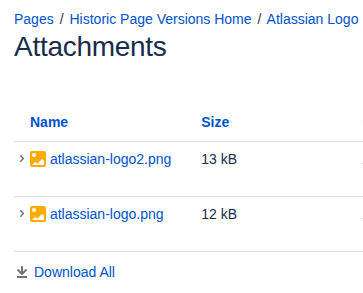
The attachments for this page show the two image files as atlassian-logo.png and atlassian-logo2.png:
Now let’s assume Atlassian rebrands and the page is updated with the new logo (creating a new page version):

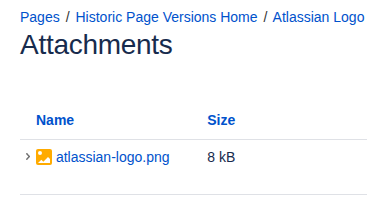
The image file for the new logo is uploaded as atlassian-logo.png, overwriting the existing file that has the same name. The other attachment, atlassian-logo2.png is not needed anymore and thus deleted:
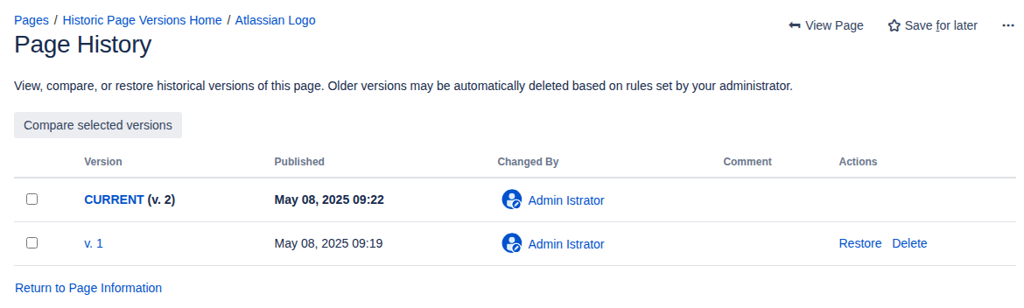
Looking at the page history, we now have two page versions:
And now things get weird.
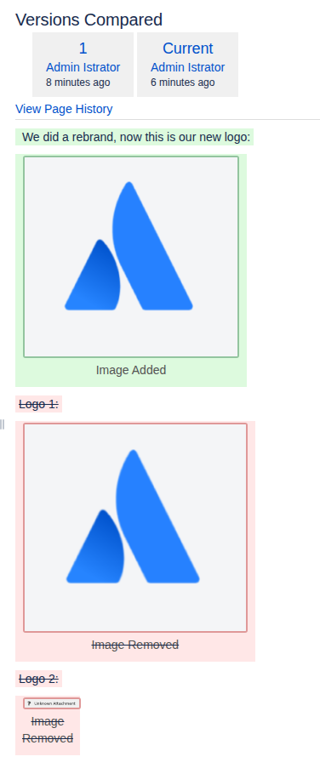
Comparing the two page versions makes it evident that changing the attachments also changed the page’s history:
Let’s export the page as PDF using the built-in Export to PDF function that Confluence offers.
Here’s how the export looks for the current version of the page; this looks correct:
Now switch to the older page version (you guess where this is going…). This is Confluence showing version 1 of the page:

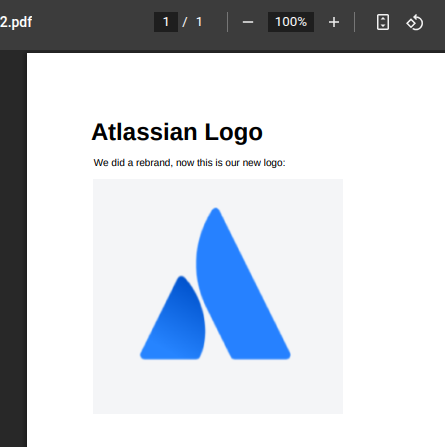
Here’s how the export looks for the old page version; this does look unexpected, as both the historical images and the historical text are absent:
Exporting old page versions to PDF is not supported. Confluence always exports the current version.
Exporting Old Page Versions to PDF is Not Supported by Confluence
Just to make that really clear: using the out-of-the-box PDF export of Confluence, you can only export the current page version. Even when viewing a historical version, using the export function will export the current version. This also applies to the Word export, by the way.
There might be third-party solutions available that solve this problem. But we are looking at out-of-the-box features.
Unclear What to Expect from Macros
Let’s see how macros handle being shown on historical page versions. The results will differ from macro to macro and are not always correct.
Children Display Macro
Here’s the built-in Children Display macro added to our sample page, correctly showing one child page:

By editing the page to add the macro, we created a new page version. When viewing a historical version of the page, the expectation could be to see exactly the above state, showing the one child page (spoiler: that doesn’t work).
Now we edit the page and add some text, while at the same time adding a second child page. The result is additional text on the page and the macro showing two child pages:

Now let’s go back in history and view the previous page version:
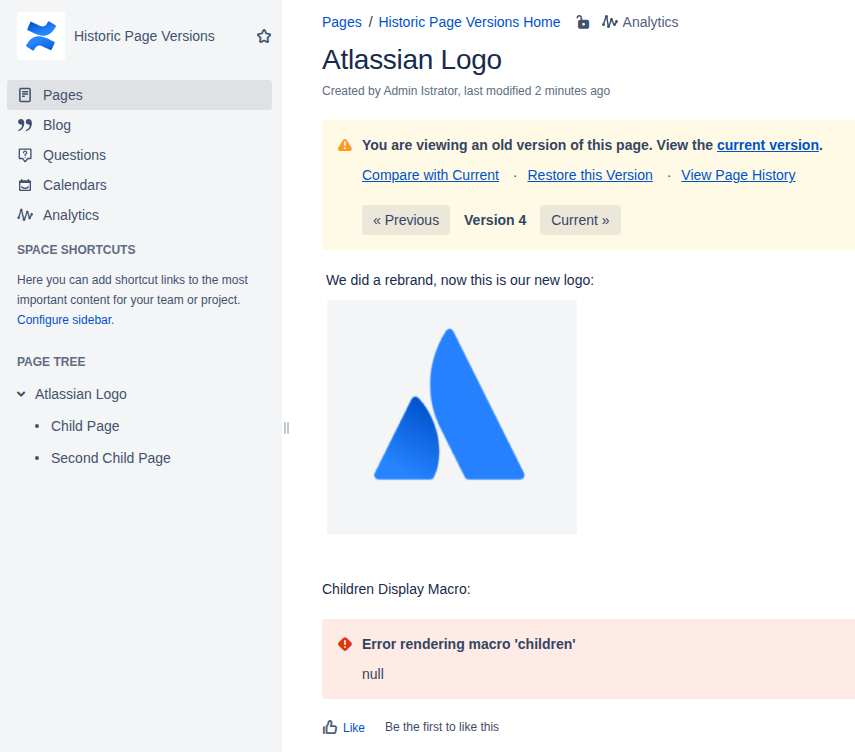
To be honest, I did not expect this. I expected the Children Display macro to show up and to show the current state of the page tree (so, two child pages).
Apparently the Children Display macro cannot handle history, at least in Confluence version 8.7.1.
Team Calendar
How is the Team Calendars macro handled when going back in page history?
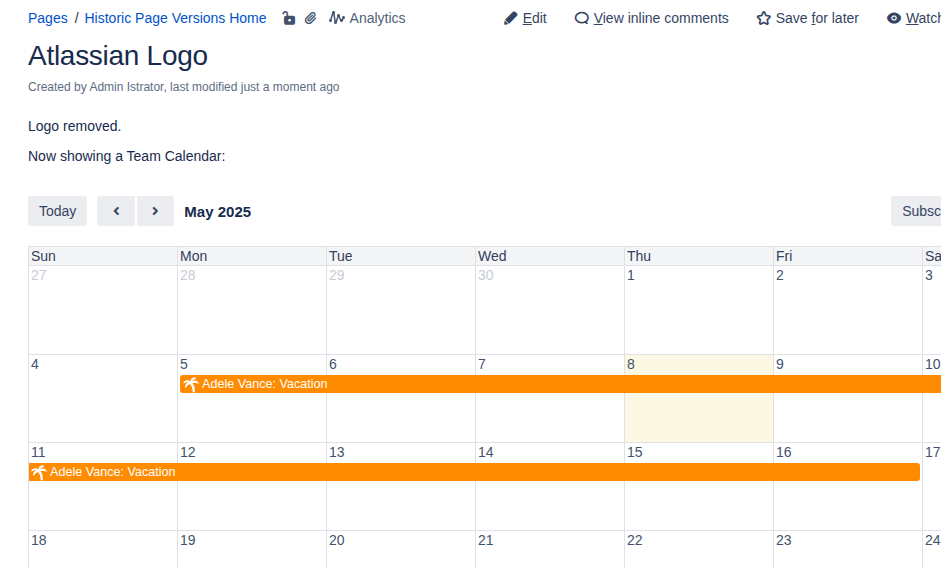
Here’s our modified sample page, showing a Team Calendar with Adele’s vacation:
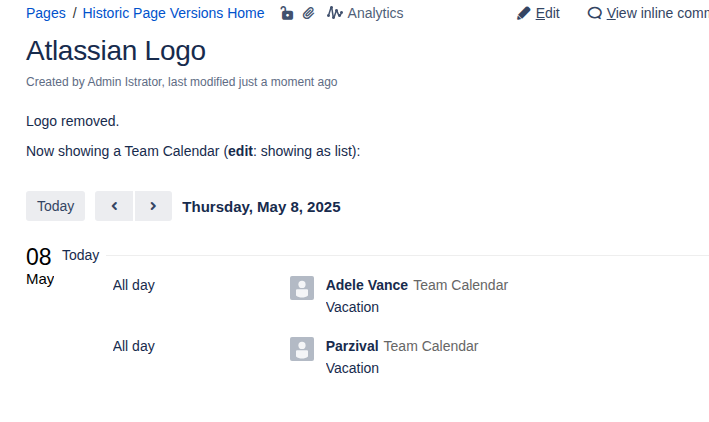
Editing the page (creating a new page version), we change the macro configuration to show all vacations as a list. Also, Parzival’s vacation has been added, making it two entries in the list:
Now let’s go back in page history, viewing the previous page version.
The historical Team Calendar macro correctly applies the old configuration (showing a calendar, not a list), but the vacation data is current. It shows both vacations, even though at the time this page version was created, only Adele’s vacation existed:
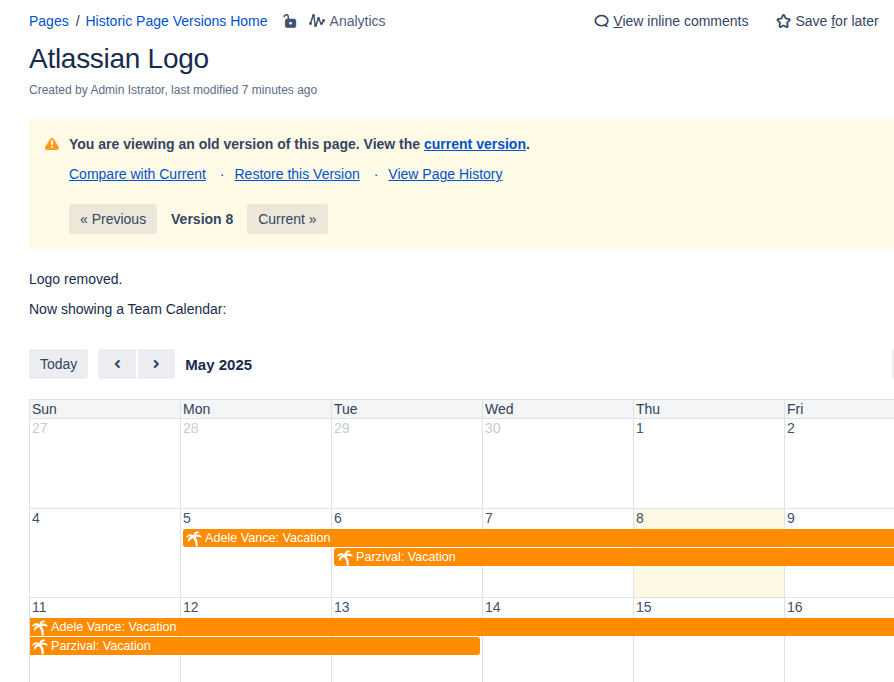
The result is a mix of historical macro configuration and current data.
By the way, exporting the current page version to PDF is broken as the calendar content is missing entirely:
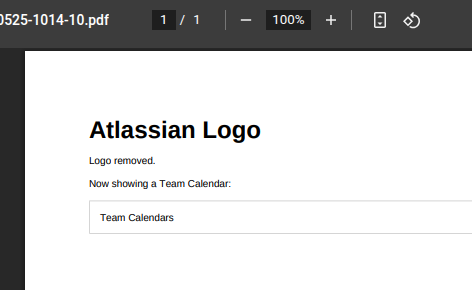
How about Migrating Historical Page Versions to SharePoint Online?
In my view, Confluence fails to properly show and export historical page versions. In many cases there are valid technical reasons for that, but that doesn’t help.
On top of that, historical page behavior depends on how macros are implemented, which differs from vendor to vendor.
WikiTraccs cannot change any of the above if it tried to migrate historical Confluence page versions to historical SharePoint page versions.
Given the limitations and behavioral differences of SharePoint, the migration result for historical page versions would be even less appealing than it currently is using out-of-the-box tooling in Confluence.
There is one approach, however, that would allow migrating historical Confluence page versions to SharePoint while staying as close as possible to what Confluence offers - and that is printing the page.
Printing Historical Pages to PDF
The approach really is that simple: open a historical page version in the browser; print the page to PDF using the browser.
Here’s different versions of our sample page printed to PDF:
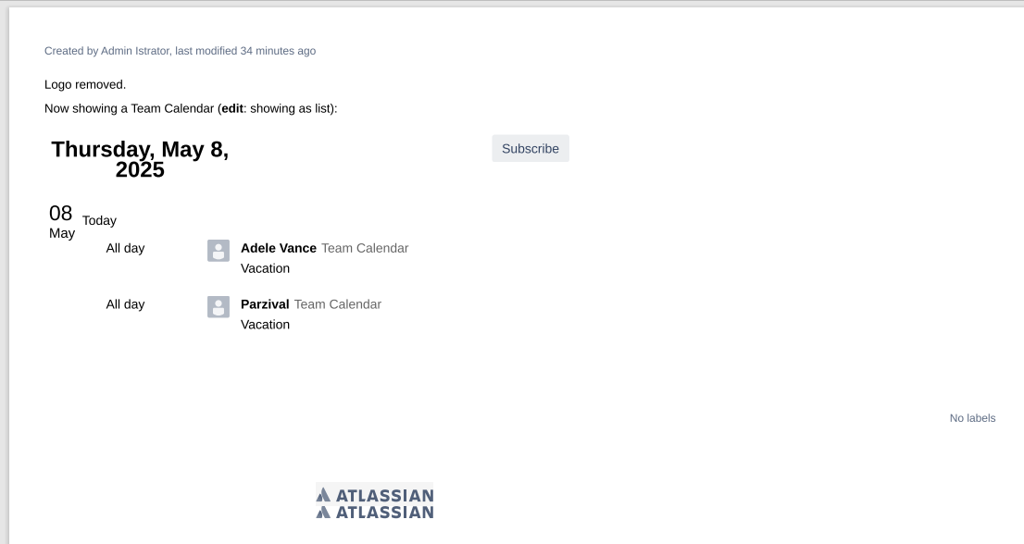
The current page version.
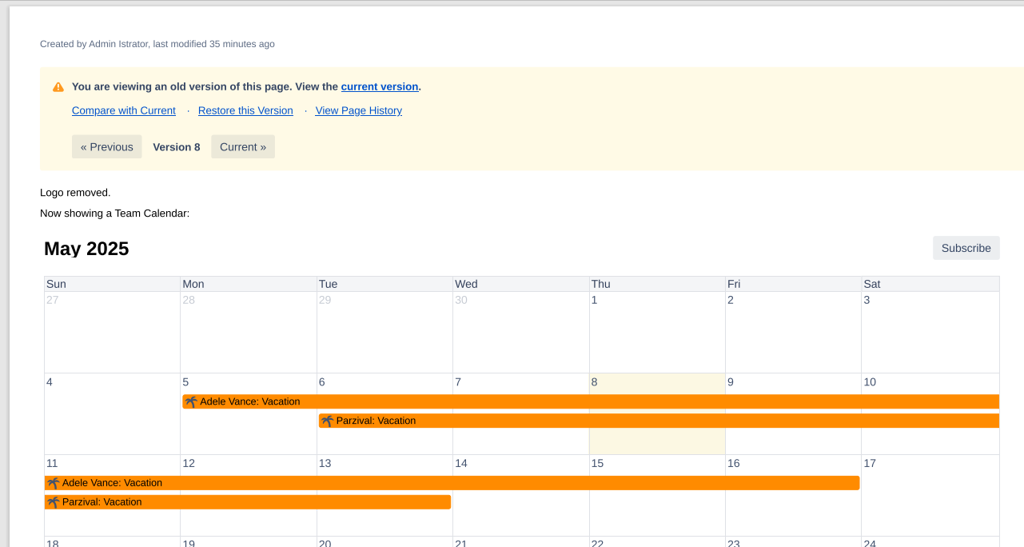
Historical page version, showing the Team Calendar as calendar.
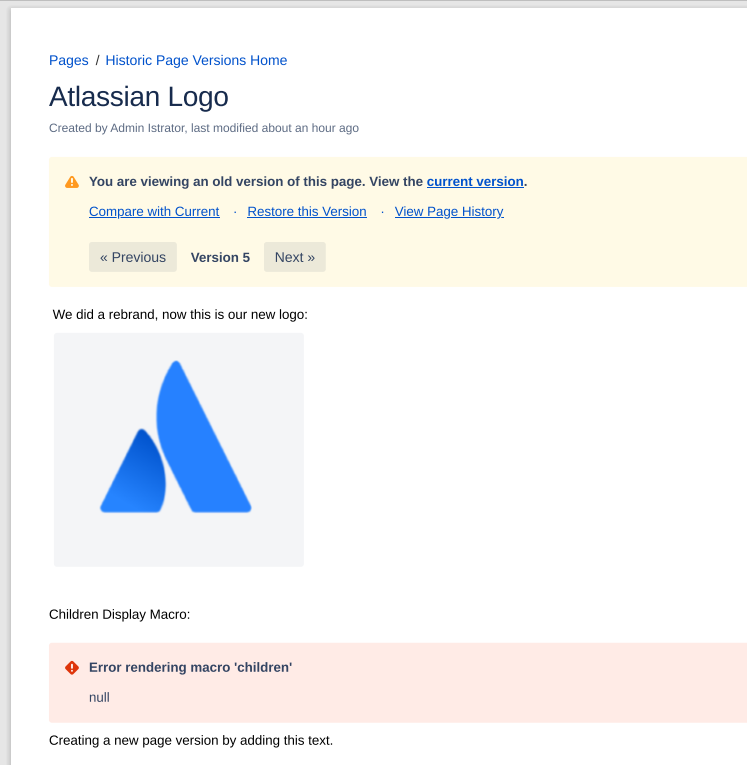
Historical page version, showing the broken Children Display macro.
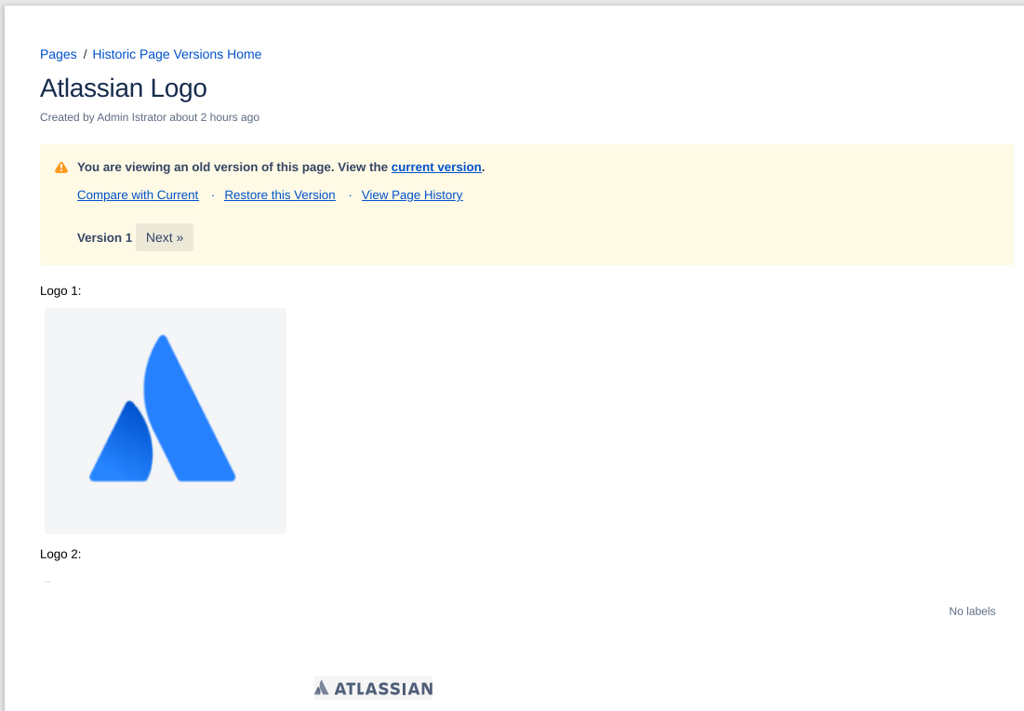
The very first historical page version, showing the modified images.
Printing pages to PDF has the following benefits:
- the historical content should be near identical to what Confluence shows in the browser when viewing a historical page version (although there seem to be styling deviations)
- the PDF contains information like author, version, labels etc. - which can be a benefit
- the printed PDF seems to capture more content than the built-in PDF export as the Team Calendars sample showed
There are also challenges with printing pages to PDF:
- very wide pages might get cut off if the PDF page is not wide enough
- Confluence Cloud adds floating menus and headers to the page that appear when printing the page, which might overlap with page content
- Contents in tab-like macros, collapsed Expand macros, etc. aren’t covered, as the printed PDF only shows what’s visible when opening the page initially
- there might be challenges with multilingual pages, where the current page content looks different, depending on the user’s chosen language
How about Third-Party Solutions?
So far, we looked at the Confluence standard.
There might be third-party solutions out there that allow exporting historical pages properly. If such a third-party solution would provide a REST API then WikiTraccs could leverage that to export pages.
Let me know if you know any good third-party solutions that could help.
Wrap Up
Confluence fails to meet expectations with regard to showing and exporting historical page versions.
Also, behavior of “historical macros” will differ from vendor to vendor.
Historical page versions might show broken macros, show a mix of historical macros and current data, and cannot be exported to PDF (using the out-of-the-box method).
WikiTraccs currently does only migrate the latest page version to SharePoint Online and - given all the limitations Confluence has when it comes to historical page versions - will not try to be smarter than Confluence.
Printing historical pages to PDF might be an option to migrate historical page snapshots to SharePoint Online, while staying as close to the Confluence standard as possible.