Migrate historical Confluence page versions as PDF with Scroll PDF Exporter
Note: The functionality described in this post is available as of WikiTraccs 1.32.51
Prerequisites
The functionality described in this post does only work on-premises, using either WikiTraccs’ Interactive Authentication or token-based authentication. Confluence Cloud is not supported.WikiTraccs normally does not migrate historical page versions to SharePoint, but to meet regulatory requirements, even exporting old page versions to PDF files would help. WikiTraccs can now meet this requirement with the help of the Scroll PDF Exporter plugin for Confluence.
Plugin Note
The Scroll PDF Exporter plugin is a commercial plugin and requires a license.
Export was tested on Confluence Data Center 8.9.8 with Scroll PDF Exporter 6.2.5 and Confluence Data Center 9.2.15 with Scroll PDF Exporter v6.3.1. Versions much older or newer than that might not work.
Tip
Read Exporting Historical Page Versions - It’s Complicated why the built-in Confluence PDF export is no good candidate for exporting historical page versions.Some customers want to limit the version export to page versions that have been published via Comala Document Management. WikiTraccs does support that as well.
Plugin Note
The Comala Document Management plugin is a commercial plugin and requires a license.
Published version selection was tested on Confluence Data Center 9.2.15 with Comala Document Management 7.14.6. Versions much older or newer than that might not work.
Configuration
In the WikiTraccs Transformation Settings, activate the Historical Export tab:
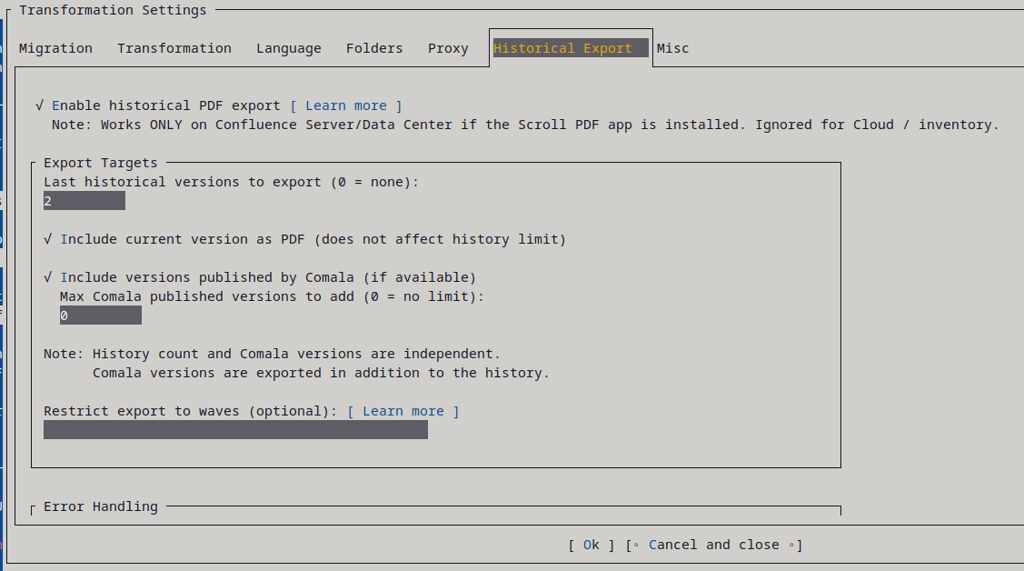
First, check Enable historical PDF export at the top. Then configure the sections below.
Export Targets
- Last historical versions to export - Number of most recent page versions to export from the Confluence history API. Set to
0to skip history-based export. This is independent of Comala published versions. - Include current version as PDF - Also export the current (latest) page version as a PDF file. This does not count toward the history limit above.
- Include versions published by Comala - Look up page versions that were published via the Comala Document Management workflow and export those as well. Comala versions are exported in addition to the history count.
- Max Comala published versions to add - Limit how many Comala-published versions to include. Set to
0for no limit. - Restrict export to waves - Optional wave filter expression. Only pages matching the selected waves are exported. Use this if you want to (for example) export the history only from certain spaces.
Error Handling
- Continue when an export fails - If checked, WikiTraccs continues exporting remaining versions when one version fails. If unchecked, it stops exporting further versions for that page. Enabled by default.
- Retry attempts - Number of retry attempts per failed export. Set to
0for no retries.
Advanced (Scroll PDF Plugin)
These settings control how WikiTraccs interacts with the Scroll PDF Exporter REST API. The defaults work for most setups.
- Template ID - The Scroll PDF template to use. Leave empty for the default template (
com.k15t.scroll.pdf.default-template-documentation). - Page set - The Scroll PDF page set. Leave empty for
current(exports the page itself, without child pages). - Poll interval (ms) - Interval in milliseconds between export status polls. Minimum
100, default1000. - Max wait (sec) - Maximum seconds to wait for an export to finish. Minimum
1, default180.
Plugin Availability Detection
WikiTraccs checks the availability of both Scroll PDF Exporter and Comala Document Management by probing their API endpoints. If this check fails repeatedly, WikiTraccs internally recognizes them as unavailable and stops using them. This is done whether they are installed or not, so you’ll find log entries related to those checks.