Migrate historical Confluence page versions as PDF with Scroll PDF Exporter
Note: The functionality described in this post is available as of WikiTraccs 1.32.51
Prerequisites
The functionality described in this post does only work on-premises, using either WikiTraccs’ Interactive Authentication or token-based authentication. Confluence Cloud is not supported.WikiTraccs normally does not migrate historical page versions to SharePoint. Nevertheless, customers suggested that exporting older page versions as PDF files would help meet certain regulatory requirements. WikiTraccs now supports this with the help of the Scroll PDF Exporter plugin for Confluence.
Plugin Note
The Scroll PDF Exporter plugin is a commercial plugin and requires a license.
Export was tested on Confluence Data Center 8.9.8 with Scroll PDF Exporter 6.2.5 and Confluence Data Center 9.2.15 with Scroll PDF Exporter v6.3.1. Versions much older or newer than that might not work.
Tip
Read Exporting Historical Page Versions - It’s Complicated why the built-in Confluence PDF export is no good candidate for exporting historical page versions.Some customers want to limit the version export to page versions that are or were in Comala Document Management’s final state. WikiTraccs does support that as well.
Plugin Note
The Comala Document Management plugin is a commercial plugin and requires a license.
Final-state version selection was tested on Confluence Data Center 9.2.15 with Comala Document Management 7.14.6. Versions much older or newer than that might not work.
Configuration
In the WikiTraccs.GUI Settings menu, click Configure Transformation to open the Transformation Settings dialog. Click the Historical Export tab:
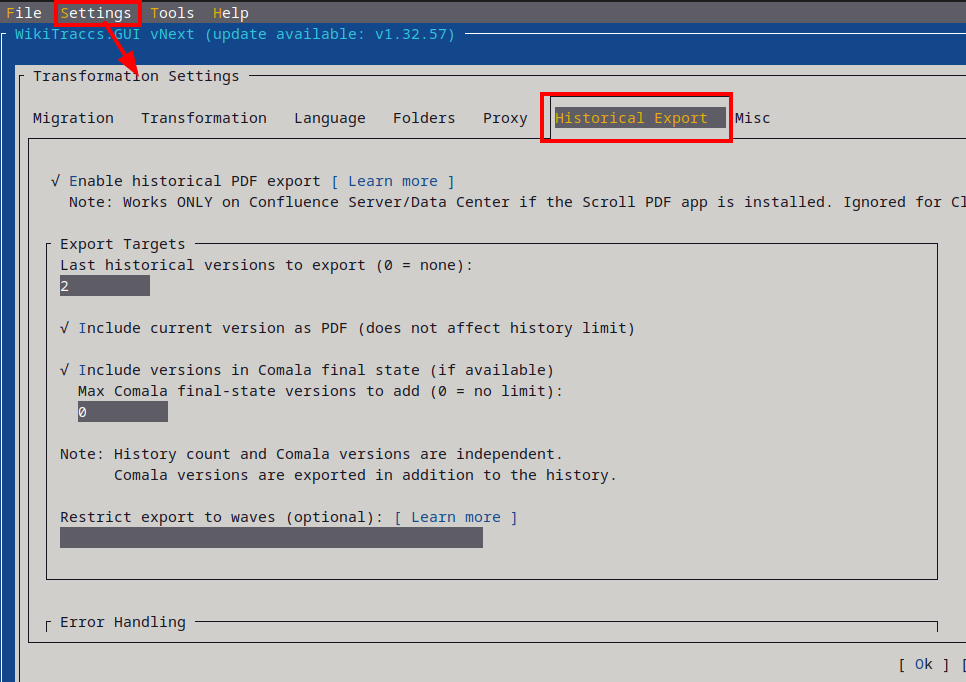
PDF export-related settings. Note that labels might have been changed, please refer to the text documentation below.
First, check Enable historical PDF export at the top. Then configure the sections below.
Export Targets
- Last historical versions to export - Number of most recent page versions to export from the Confluence history API. Set to
0to skip history-based export. This is independent of Comala final-state versions. - Include current version as PDF - Also export the current (latest) page version as a PDF file. This does not count toward the history limit above.
- Include versions in Comala final state - Look up page versions that Comala marked as final and export those as well. Comala versions are exported in addition to the history count.
- Max Comala final-state versions to add - Limit how many Comala final-state versions to include. Set to
0for no limit. - Restrict export to waves - Optional wave filter expression. Only pages matching the selected waves are exported. Use this if you want to (for example) export the history only from certain spaces.
Error Handling
- Continue when an export fails - If checked, WikiTraccs continues exporting remaining versions when one version fails. If unchecked, it stops exporting further versions for that page. Enabled by default.
- Retry attempts - Number of retry attempts per failed export. Set to
0for no retries.
Advanced (Scroll PDF Plugin)
These settings control how WikiTraccs interacts with the Scroll PDF Exporter REST API. The defaults work for most setups.
- Template ID - The Scroll PDF template to use. Leave empty for the default template (
com.k15t.scroll.pdf.default-template-documentation). - Page set - The Scroll PDF page set. Leave empty for
current(exports the page itself, without child pages). - Poll interval (ms) - Interval in milliseconds between export status polls. Minimum
100, default1000. - Max wait (sec) - Maximum seconds to wait for an export to finish. Minimum
1, default180.
If you need to look up the template ID, read How to get the Scroll PDF template ID.
Plugin Availability Detection
WikiTraccs checks the availability of both Scroll PDF Exporter and Comala Document Management by probing their API endpoints. If this check fails repeatedly, WikiTraccs internally recognizes them as unavailable and stops using them. This is done whether they are installed or not, so you’ll find log entries related to those checks.
Notes Related to Comala Document Management
Below sections are relevant if you select the Include versions in Comala final state option to export “Comala-published” page versions.
Page Activity vs. Document Activity
Comala Document Management - as of version 7 - implements two technical approaches to handling and showing workflow activities: Page Activity and Document Activity. Both can co-exist in the same Confluence instance.
Page Activity is the legacy implementation of versions before 7. If a space is in legacy mode, it can be upgraded.
Document Activity is the implementation used by default for new spaces, starting with Comala Document Management 7.
The administration provides a report that shows which spaces need an upgrade, including links to related documentation:
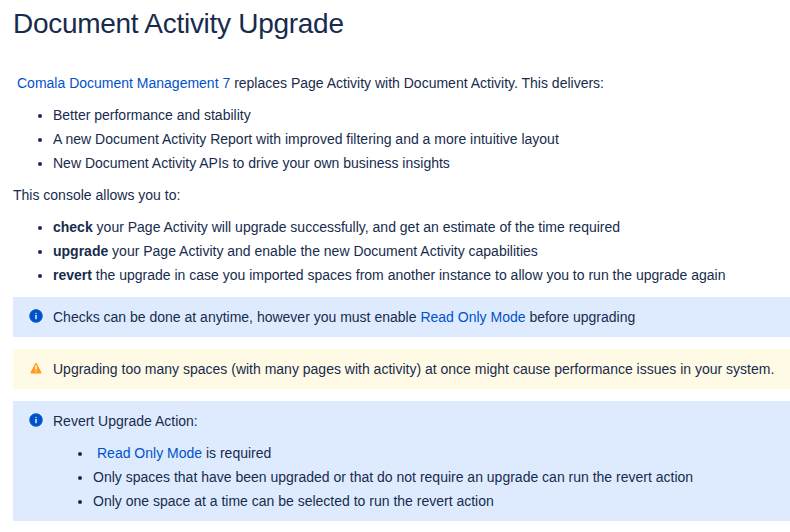
WikiTraccs is able to work with both approaches.
“Final” States
When selecting “Comala-published” page versions for PDF export, WikiTraccs searches for historical versions that entered the final workflow state.
WikiTraccs does not rely on specific state names like “Published” or “Approved”, if there is a workflow state marked as final.
This matters because workflow state names can vary between workflows and installations, while the final marker is the stable signal for any kind of “Published” or “Approved” workflow state.
Some workflows do not expose any state that is officially flagged final, even though they still have a (seemingly) obvious final state. For those cases, WikiTraccs supports a (configurable, via appsettings.json) fallback list of workflow state names and, by default, treats Approved, Done, and Finished as final, together with their lower-case and upper-case variants, when there is no state carrying the official final-state flag.
Renamed States
Renaming the final state of a workflow can mess with both the reporting of Comala Document Management and WikiTraccs’ historical version selection. The behavior will also differ between the legacy Page Activity and new Document Activity mode a page is in.
In the legacy Comala Page Activity mode, renaming a final state will exclude older page versions that entered that state (when it still had the old name) from being exported.
In Document Activity mode, it seems to be possible to export older page versions which entered renamed final states, despite the renaming. You might run into the situation where WikiTraccs exports those historical versions, while the Comala UI doesn’t show them because of the name mismatch.
It might be possible that this behavior changes in the future, depending on changes made by the app vendor.
Permissions
WikiTraccs retrieves Comala data through the Comala REST API. Access to that API is controlled by a Comala configuration setting called Workflow Activity and Drafts Visibility (found in the Comala global and space-level settings). This setting determines how much Confluence permission the migration account needs:
- If set to “Anyone with view permission” - the migration account only needs Confluence VIEW permission on the pages.
- If set to “Space admins and page editors” (this is the default) - the migration account needs one of the following:
- Confluence EDIT permission on the pages, or
- Space admin permission in the respective spaces, or
- Confluence administrator status
In practice, the simplest approach is to either give the migration account EDIT permission in the relevant spaces, or change the Comala visibility setting to Anyone with view permission for the duration of the migration.
Success Metrics
Once Comala Document Management history has been retrieved successfully, WikiTraccs writes a structured label to the migrated SharePoint page. This label encodes every Comala final-state version that was discovered, whether it was selected for export, and whether the PDF file was verified as present in SharePoint after upload.
The label is stored as part of the page’s Confluence: Labels (WikiTraccs) field and follows this structure:
migration:[comala.finalStateHistoricTargets=v6|id=2195470|sel=1|ok=0|by=admin|fn=My%20Page-v6-2195464-2195470.pdf,v5|id=2195469|sel=0|ok=1|by=]
Each comma-separated entry represents one Comala final-state version:
- v{N} - the Confluence version number
- id={HistoricPageId} - the historical content ID of that version
- sel=1/0 - whether this version was selected for PDF export (
1= selected,0= not selected, e.g. because of the max count limit) - ok=1/0 - whether the exported PDF file was verified as present in SharePoint
- by={user} - the Confluence user who triggered the final-state transition
- fn={encoded filename} - the URL-encoded PDF file name in SharePoint (only present for selected versions)
The ok value is determined as follows:
- For versions that were not selected for export (
sel=0),okis always1(no upload expected, so nothing to verify). - For versions that were selected (
sel=1),okstarts at0. After the PDF has been uploaded to SharePoint, WikiTraccs verifies the upload. If the Verify Attachments After Provisioning feature is enabled (which is the default), it checks whether a file with a matching name and non-zero size exists in the SharePoint folder. Otherwise, it checks whether the file was part of the successful upload batch. If the verification succeeds,okis set to1. If the file is missing or has zero bytes,okstays at0and a warning is logged.
Comala PDF File Names
For PDFs exported because of a Comala final-state match, WikiTraccs builds the file name from the page title and version metadata, then appends a Comala-specific suffix:
{PageTitle}-v{VersionNumber}-{CurrentPageId}-{HistoricPageId}-final-{byflag|byname}-{StateName}.pdf
Example:
Space with history-v6-2195464-2195470-final-byflag-Final state.pdf
The parts mean:
- {PageTitle} - the Confluence page title of the exported version, sanitized so it can be stored in SharePoint
- v{VersionNumber} - the Confluence version number, like
v6 - {CurrentPageId} - the current Confluence page ID of the page the version belongs to
- {HistoricPageId} - the historic Confluence content ID of the exported version
- final - a marker showing that this PDF was added because of Comala final-state detection
- {byflag|byname} - how WikiTraccs determined that the version was final:
- byflag - official final flag from the Comala workflow state
- byname - match by state name against configured final-state names
- {StateName} - the workflow state name that caused the version to be treated as final
For historical PDFs that come only from the regular Confluence history selection and not from Comala final-state detection, the Comala suffix is omitted, so the file name looks like this:
{PageTitle}-v{VersionNumber}-{CurrentPageId}-{HistoricPageId}.pdf
Comala Metadata Retrieval Failures
When Comala Document Management metadata retrieval fails completely you should see Warnings and Errors in the WikiTraccs log. WikiTraccs probes the Comala API a few times and then stops calling it for the remainder of the run.
If you see such messages, check that the migration account has the required permissions and that Comala Document Management is properly licensed and working.