How to get the Scroll PDF template ID
If you configure WikiTraccs to export historical page versions through Scroll PDF Exporter, you might need the template ID of the Scroll PDF template you want to use.
WikiTraccs uses that ID in the Template ID setting of the historical PDF export configuration. If you need the broader context, read Migrate historical Confluence page versions as PDF with Scroll PDF Exporter.
There are two straightforward ways to get the template ID.
Option 1: Use the Scroll PDF template administration
This is your option if you can access the Scroll PDF Exporter administration in a Confluence space.
Open the Scroll PDF Exporter app in the space tools:
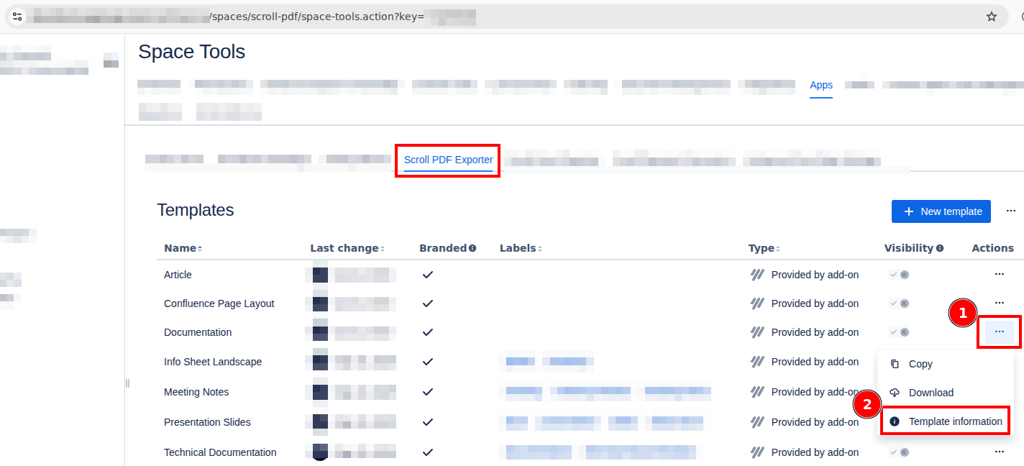
- Click the three dots to open the action menu of the desired template
- Click Template information
The dialog shows the template details, including the ID you can copy:
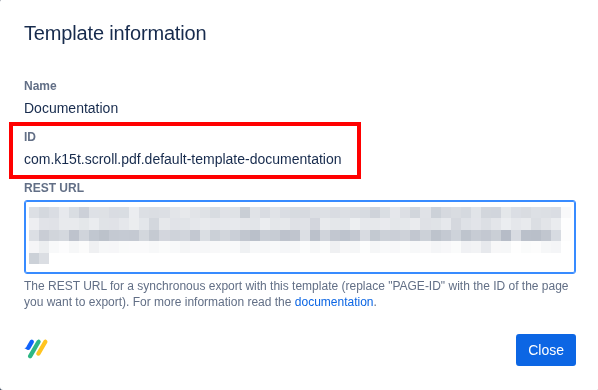
The value highlighted is the Scroll PDF template ID.
Option 2: Use the browser’s developer tools
If you want to confirm which template ID Confluence actually sends during export, or if the administration view is not available, you can inspect the export request in the browser.
- Open a Confluence page
- Open the browser Developer Tools (by pressing F12 or using the appropriate menu entry of your browser)
- Switch to the Network tab
- Start a manual Scroll PDF export with the template you want to use
- Find and click the
exportsrequest - Open the Payload tab
- Look for the
templateIdvalue
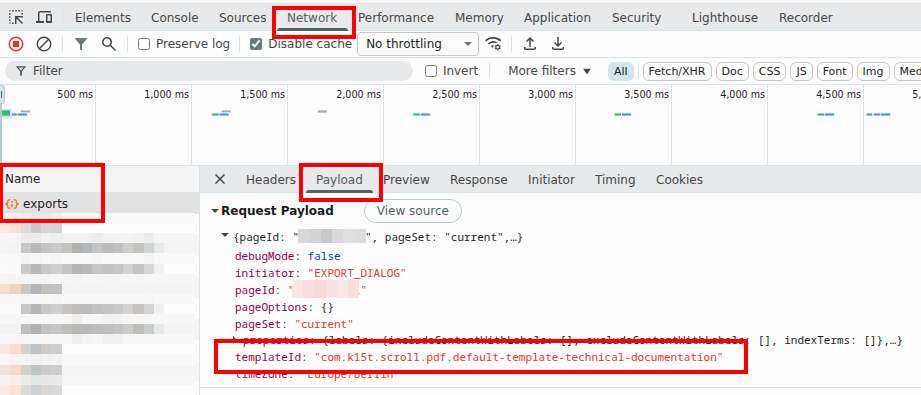
The export request payload contains the templateId value that was used for the manual export.
Wrap Up
You can get the Scroll PDF template ID either from the Scroll PDF Exporter administration or from the templateId field in the browser’s exports request payload.
That is the value used in WikiTraccs’ Template ID field for Scroll PDF Exporter integration.