Syncing and updating the user mapping list [on-prem]
On-prem only
The content of this blog post is only relevant for Confluence Data Center and Server. It is not available for Confluence Cloud.Note: the functionality described in this post is available as of WikiTraccs v1.34.35.
During each migration run, WikiTraccs “collects” user account information from pages you migrate from Confluence to SharePoint, for example the creator and editor of each page.
WikiTraccs stores this Confluence user account information in a SharePoint list Confluence User and Group Mapping (WikiTraccs). It also tries to find a corresponding Entra ID account that has the same email address. This Entra ID account can then become the Author or Editor of a SharePoint page.
The procedure is outlined in this blog post: Mapping user accounts from Confluence to SharePoint.
But you might also encounter scenarios, where you want to pre-fill this SharePoint list with Confluence accounts, or where you want to update the user emails of accounts.
This is where the Sync & Update User List tool will help.
How to start the tool
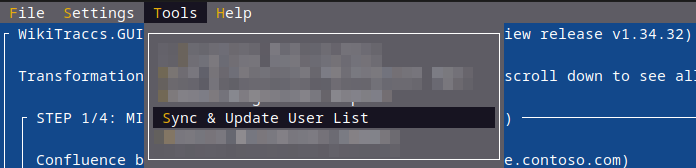
Open the menu Tools, then click Sync & Update User List:
WikiTraccs asks for confirmation to synchronize the local user cache and the SharePoint user mapping list.
Storage Note
Confluence user account information is stored in two places: the “Confluence User and Group Mapping (WikiTraccs)” list, which is a SharePoint list, and a local cache. Those storage locations can get out of sync, for example when accounts are deleted from the SharePoint list, or the local cache is reset.
Click Yes, to synchronize in both directions. Locally stored accounts that are missing in SharePoint are added to the SharePoint list, and accounts from the SharePoint list missing in the local cache are downloaded.
Click Clean local cache, then Yes, to make the synchronization (kind of) one-way. Locally stored user accounts are removed from the local cache, unless the accounts are referenced by e.g. inventory data. After cleaning, the sync happens like described in the previous paragraph.
Click No to cancel and close the dialog.
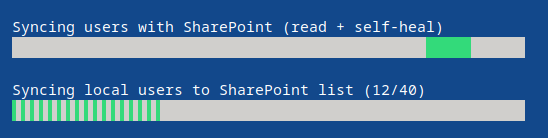
Assuming you clicked Yes, WikiTraccs might now starting uploading user account information to the SharePoint list:
Speed Note
Uploading to SharePoint takes time as one-by-one account information is stored in the SharePoint list. Throttling by Microsoft restricts the speed of the operation.After this, the Sync & Update User List dialog opens:
How to use the tool
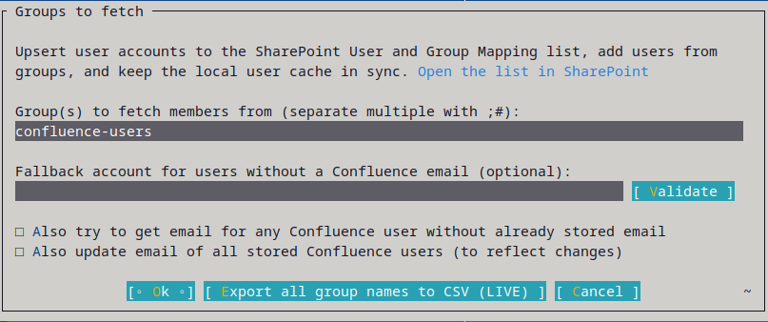
At the top there is an Open the list in SharePoint link that takes you straight to the mapping list in SharePoint, so you can check the current state at any time.
The fields:
| Field | What it means |
|---|---|
| Group(s) to fetch members from | The Confluence groups whose members you want to add to the user list. To name several groups, separate them with ;#. |
| Fallback account for users without a Confluence email (optional) | An Entra ID account that all email-less users get mapped to via the WT_Setting_MapForDataAndMentions and WT_Setting_MapForPermissions fields. Leave it empty to skip the fallback. Use the Validate button to check that the account exists in SharePoint before you run. |
| Checkbox Also try to get email for any Confluence user without already stored email | For users already in the list that have no email yet, WikiTraccs asks Confluence again for one. This option is helpful after toggling email visibility on for a Confluence site. |
| Checkbox Also update email of all stored Confluence users (to reflect changes) | For every user already in the list, WikiTraccs re-reads the email from Confluence and updates it. |
There is also an Export button that writes all Confluence group names to a CSV file, which you can use to learn about existing groups and to verify that WikiTraccs can see them. Note that the export can take a long time if there are thousands of groups and that there is no Cancel button. Close WikiTraccs to cancel.
Click Ok to start the synchronization.
WikiTraccs will fetch group members first:

Depending on group size, this might take a while. For each user account, WikiTraccs will reach out multiple times to Confluence to try to get the user’s email address.
Then, WikiTraccs stores user account information in the SharePoint list.

Note that this also might take a long time, depending on the number of user accounts.
When done, WikiTraccs shows a summary:

What gets overwritten
WikiTraccs “owns” the Confluence part of the user account information in the SharePoint list. It might overwrite information like the user name or the Confluence email addresse when updating the SharePoint list.
Note
WikiTraccs only writes to the SharePoint mapping list, as well as the local cache. It never changes anything in Confluence, it just reads.WikiTraccs will also overwrite the mapping WT_Setting_MapForDataAndMentions and WT_Setting_MapForPermissions fields under the following circumstances:
- Mapping by email. When a user has an email (freshly fetched or refreshed), WikiTraccs looks up the matching Entra ID account and sets the mapping. If a mapping was already there, it is replaced to match the email. This is the same automapping that runs during a migration.
- When you set a fallback account, every email-less user that the run touches is mapped to that one account. This replaces whatever mapping the row had before, including a mapping you set by hand.
So, if you manually mapped Confluence user accounts to the right Entra ID account, you should be careful using any of the auto-update features, as this might replace your mapping.
Scenarios
Prefilling the list before migration
You want mappings ready before you migrate any pages.
- Open Tools, Sync & Update User List, confirm with Yes.
- Leave confluence-users in the group field (or name the groups you need).
- Leave the fallback empty and both checkboxes off.
- Run it.
All members of the groups are added to the mapping list, automapped by email where possible. You can then fill in the rest by hand (or script) before starting the content migration.
Pointing email-less accounts at a default account
You have accounts that will never get an email (local or service accounts) and want them all mapped to one default account instead of staying unmapped.
- Open Tools, Sync & Update User List, confirm with Yes.
- Enter the default account in Fallback account for users without a Confluence email and click Validate.
- Turn on Also try to get email for any Confluence user without already stored email so accounts that can still get a real email are mapped properly first.
- Run it.
Every account without an email ends up mapped to the default account. Remember that this also replaces any manual mapping those accounts had.
Filling in emails after making them public in Confluence
You switched the Confluence email visibility to public, so emails that were hidden before are now widely available, and you want the accounts already in the mapping list to pick them up.
- Open Tools, Sync & Update User List, confirm with Yes.
- Leave the fallback empty and the group field at its default.
- Turn on Also try to get email for any Confluence user without already stored email.
- Run it.
WikiTraccs re-asks Confluence for an email for every stored user that still has none, fills in the ones that are now available, and automaps those accounts by email. If you also want to catch emails that changed (not just newly appeared), turn on Also update email of all stored Confluence users (to reflect changes) as well for a full refresh.
Insights and control
When a run doesn’t do what you expect, for example accounts stay unmapped or emails don’t show up, the common log files tell you what happened for each account.
The tool covers the common cases. When you need finer control, for example to map specific accounts in bulk, clear mappings, or set fields the dialog doesn’t touch, you can edit the Confluence User and Group Mapping (WikiTraccs) list directly with a PowerShell script and PnP.PowerShell. This is the recommended approach when finer control is required.