Confluence Inventory
How to get information about your source Confluence environment.
Getting information about your source Confluence environment helps estimating migration efforts and durations.
The blog post How much time does it take to migrate? has some information about the relationship between content and the time it takes to migrate.
WikiTraccs has an inventory scan built in that provides detailed insights into your Confluence instance. The inventory scan is integrated with the Migration Duration Estimator and provides input values for the estimation.
Have a look at the child pages for more information.
1 - Inventory Scan and Reporting
How to run an inventory and create reports for your Confluence instance
Note: Inventory Scan and Reporting is available as of WikiTraccs 1.32.29, with some parts having been added in later releases.
WikiTraccs has an inventory scan built in. The inventory scan leverages the same data processing pipeline that is used when migrating content from Confluence to SharePoint. It is much faster though, since attachment downloads are skipped and no SharePoint is present nor required.
Note
WikiTraccs can create some “synthetic” attachments during a real migration when they are switched on in the settings: the native Word export and the historical PDF export (via the Scroll PDF Exporter app). Both run only during a content migration, not during an inventory scan.Overview
Using the inventory run, WikiTraccs gathers extensive information about your Confluence instance, including:
- page count
- attachment count and size, as well as information about unlinked attachments
- macro count
- link counts, including link target and broken link information
- open tasks
- drafts and archived pages
- and much more
Information gathered is presented in different graphs and views, some per site and some per space.
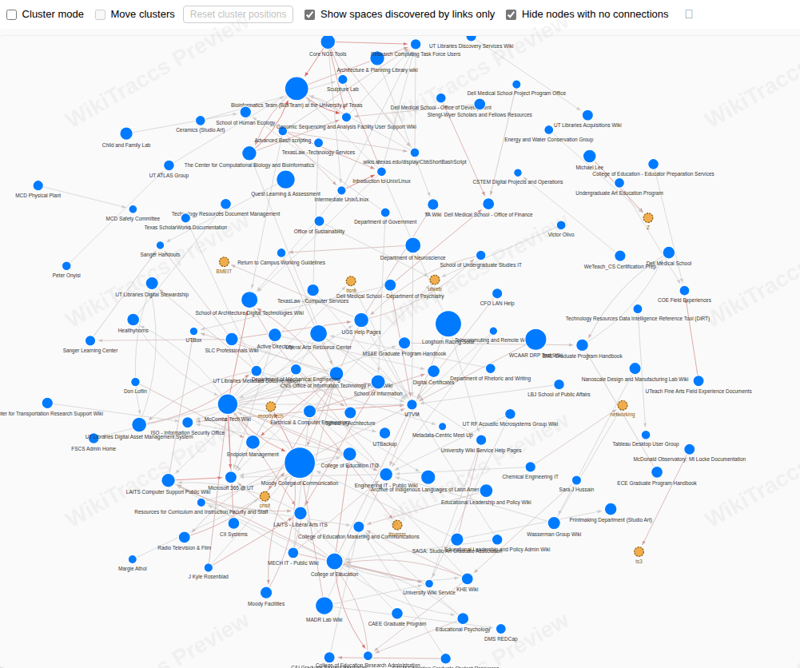
Here’s an example of the space link graph, showing linked spaces:
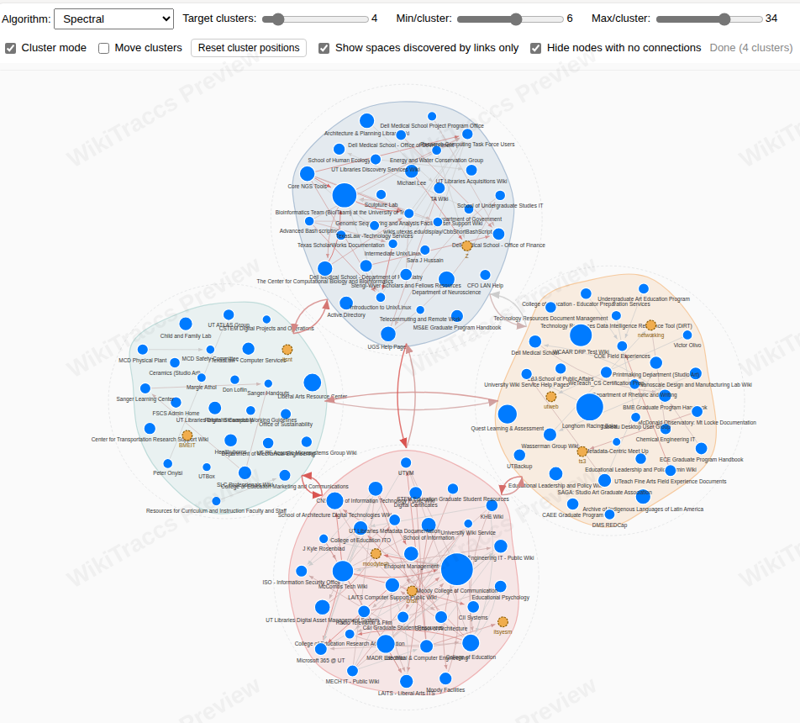
Again, in clustered fashion:
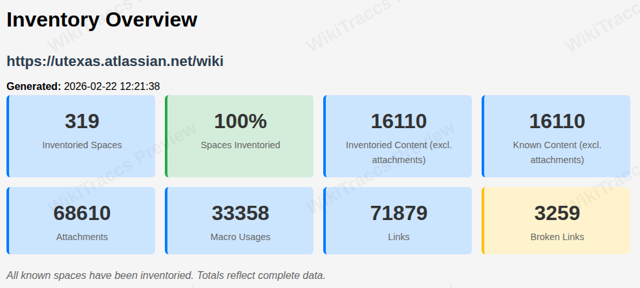
And overview metrics for the whole site, ready to be drilled in to:
Using this information, you can leverage the Migration Duration Estimator get an estimation of the time if will take to migrate all your Confluence content to SharePoint.
How to Run an Inventory Scan
Follow the steps in Activate and Configure Inventory Mode.
1.1 - Activate and Configure Inventory Mode
How to activate Confluence inventory mode
To put WikiTraccs into inventory mode, click Tools in the WikiTraccs.GUI main menu, then Inventory Mode.
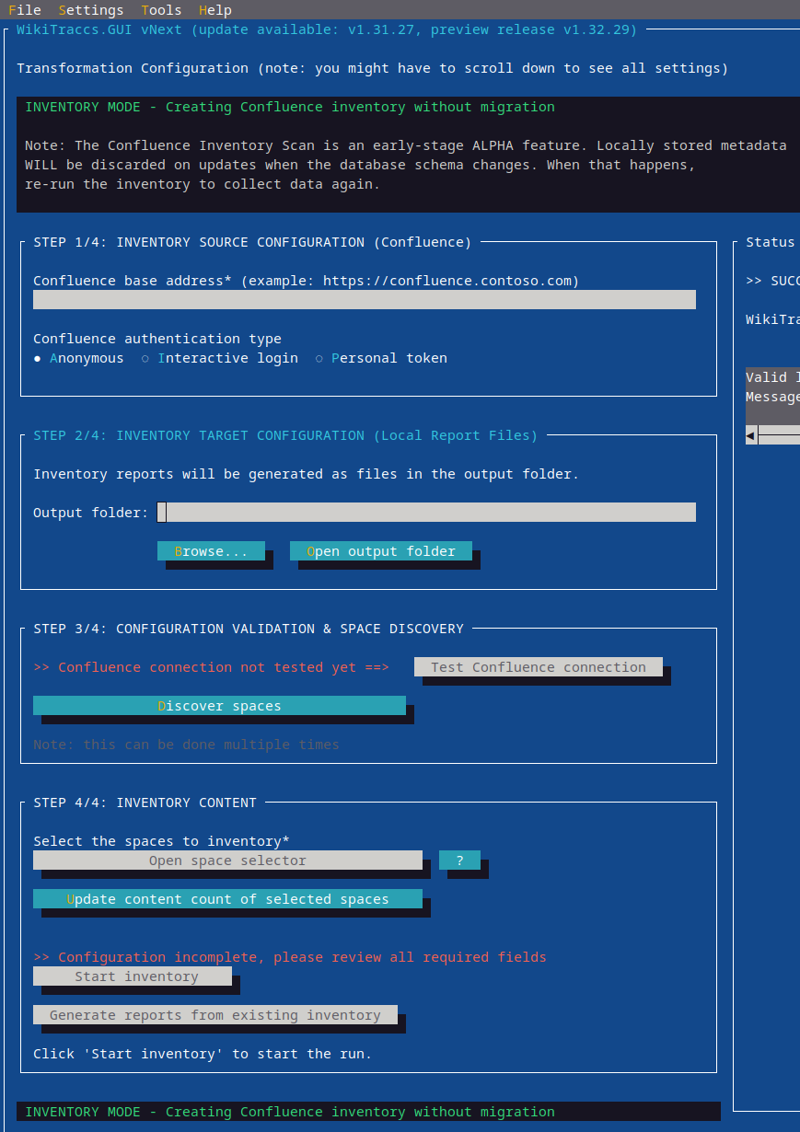
The WikiTraccs user interface will change and look like this:
You configure the inventory scan in four steps:
- Step 1: Where is Confluence?
- Step 2: Where to store the reports?
- Step 3: What’s there in Confluence? Validate the Confluence connection and get the list of Confluence spaces.
- Step 4: What to inventory? Select spaces to inventory and start the inventory run.
Step 1: Where is Confluence?
Enter your Confluence base address.
This might look like:
https://wiki.contoso.com (Confluence on-premises)https://contoso.com/confluence (Confluence on-premises, with context path)https://contoso.atlassian.net/wiki (Confluence Cloud, always ends with /wiki)
Choose an appropriate authentication method (read more here: Authenticating with Confluence).
Step 2: Where to store the reports?
Choose a folder to store reports in.
Step 3: What’s there in Confluence?
Click Test Confluence connection to verify that WikiTraccs can communicate with Confluence.
If that worked, click Discover spaces. This gets the list of spaces from Confluence and stores it in a local database. You’ll choose spaces to inventory in the next step.
Step 4: What to inventory?
Click Open space selector to open the space selection dialog. Read more about the space selector here: Select Spaces to Inventory.
After choosing spaces to inventory, click Update content count of selected spaces.
Note
Although not strictly required, the page count update gives you an overview of how many pages WikiTraccs is allowed to see using the selected authentication method.Click Start inventory.
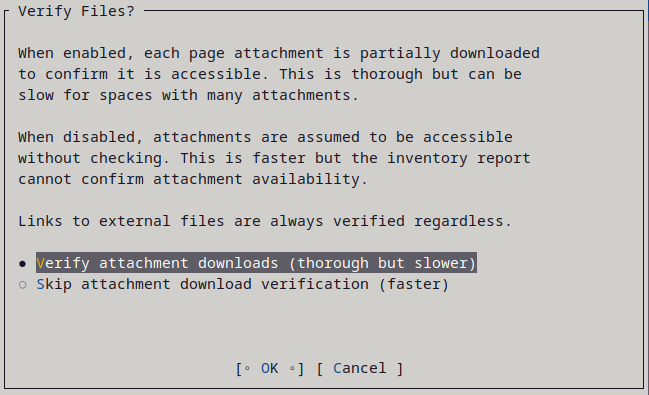
Every time when starting the inventory scan, you can choose how WikiTraccs handles attachments:
Verify attachment downloads will download the first few bytes of every attachment to verify this is working. This can uncover attachment-related errors that only surface when downloading attachment file from Confluence.
Skip attachment download verification will skip over attachments. This is much faster.
Click Generate report from existing inventory to generate a new report, that contains the following:
- if you never ran space discovery, an empty report will be generated
- if you ran space discovery, but never ran a content count update or inventory scan, a report will be generated showing the list of spaces
- if you ran content count update, but no inventory scan, a report will be generated showing the list of spaces and their content count
- if you ran an inventory scan, a report will be generated showing the collected data
- for partial (interrupted) scans, the reports will show incomplete data
Every click generates a new report.
1.2 - Select Spaces to Inventory
How to select which Confluence spaces to inventory
Use the Space Selector to select spaces to run the inventory scan for, or to update the content count for.
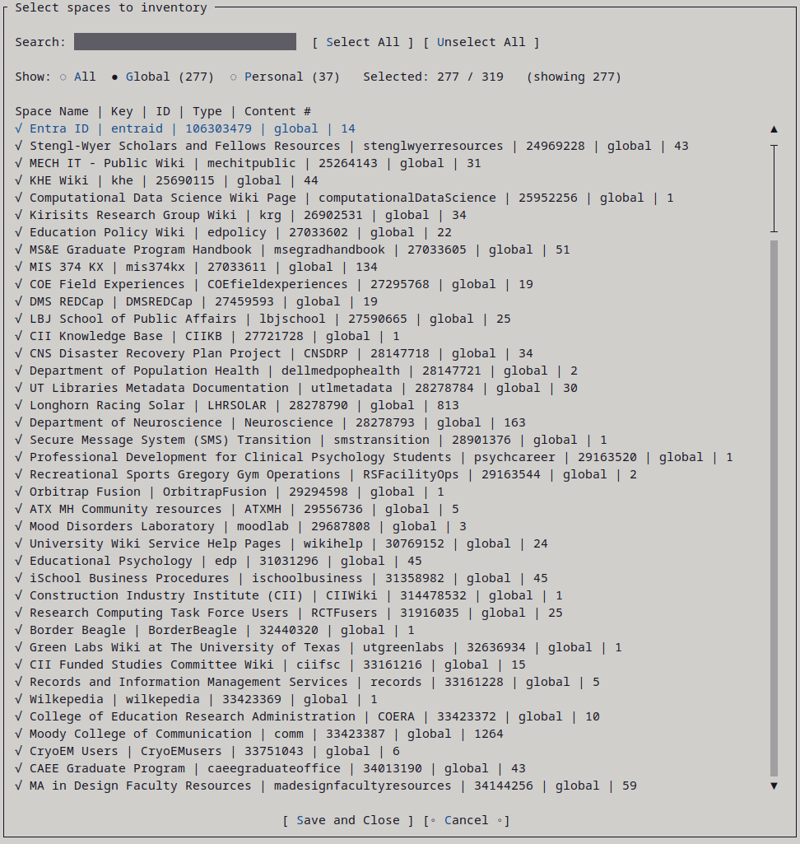
Sample list of spaces from a publicly available Confluence instance.
The dialog shows all spaces that WikiTraccs discovered in Confluence.
For each space the following is shown:
- Space Name
- Space Key
- Space ID
- Space Type
- Content count (excl. attachments), if known
Use the Search box to narrow the list down to spaces matching your search term.
Use the Show All / Global / Personal filter to narrow the space list to those space types.s
Click Select All to select all currently shown spaces. Use Unselect All to unselect all currently shown spaces.
Click Save and Close to confirm and close the dialog.
1.3 - Inventory Storage
How to find and access inventory scan data
When running a Confluence inventory scan, WikiTraccs stores data in a local Sqlite database.
The Sqlite database is stored in the non-roaming AppData folder of the current user. Have a look at File Storage on where that is typically found.
Find the wikitraccs-inventory folder, it contains a .db file, e.g. wikitraccs-inventory-store-r3.db. The revision number (“r3”) might change in future releases.
Use and Sqlite browser application to open this file and run your own analysis.
The database schema is subject to changes.
1.4 - Report: Inventory Overview
Understanding the Inventory Overview report and the Space Link Graph
Alpha Feature
Inventory reports are an alpha feature and subject to change. Report data is based on the spaces scanned via inventory scan. Only a complete scan of all spaces guarantees complete insights.The Inventory Overview is the main entry point for all inventory reports. It provides a high-level summary of your entire Confluence instance and links to the detailed per-space reports.
What It Shows
At the top, you will find key metrics across all inventoried spaces:
- Total spaces - how many spaces were scanned
- Total pages - the combined page count
- Attachments - total number of attachments
- Macros - total macro usage count
- Links and broken links - total link counts, including how many are broken
- Flagged pages - pages that may need attention
- Open tasks - total open (incomplete) tasks
- Users and groups - discovered user and group counts
The overview also shows the inventory progress - how many spaces have been fully inventoried versus partially inventoried or not yet scanned.
Space Table
Below the summary, a table lists every inventoried space with per-space metrics such as page count, attachment count, macro count, and link counts. Each space links to its detailed Space Report.
Spaces that have not yet been inventoried are shown separately in a Spaces Pending Inventory section.
Space Link Graph
The overview includes an interactive Space Link Graph that visualizes cross-space links. Each space is shown as a bubble, and arrows between bubbles indicate that pages in one space link to pages in another.
- Blue bubbles represent inventoried spaces.
- Orange bubbles represent spaces that are referenced by links but have not been inventoried.
- Bubble size reflects the number of pages in a space.
- Arrow thickness reflects the number of links between two spaces.
You can toggle a cluster view that groups closely connected spaces together, making it easier to identify space clusters and isolated spaces.
Use this graph to understand how your Confluence spaces are interconnected before planning a migration.
How to Use This Report
The overview helps you:
- Track inventory progress - see at a glance which spaces still need scanning.
- Identify the largest spaces - sort by page or attachment count to find the heaviest spaces.
- Discover space dependencies - use the link graph to find tightly coupled spaces that should be migrated together.
- Drill into details - click any space to open its full space report.
1.5 - Report: Space Details
Understanding the per-space inventory report
Alpha Feature
Inventory reports are an alpha feature and subject to change. Report data is based on the spaces scanned via inventory scan. Only a complete scan of all spaces guarantees complete insights.The Space Report is generated for each inventoried Confluence space. It provides a detailed breakdown of everything WikiTraccs discovered in that space.
Summary Section
At the top you will find an overview of the space, including:
- Page count - total pages and how many have been inventoried
- Attachment count - total attachments, with a breakdown of successful and failed downloads
- Macro count - number of unique macros used in this space
- Link counts - internal links, external links, and broken links
- Drafts and archived pages - counts for content that was excluded from the main inventory
- Restricted pages - pages with access restrictions
- Workflow pages - pages using Comala or similar workflow plugins
An inventory progress indicator shows whether the space has been fully scanned.
Pages Table
The main table lists every page (and other content types like blog posts or whiteboards) in the space. For each page you can see:
- Title - linking directly to the page in Confluence
- Content type - page, blog post, whiteboard, etc.
- Word count and image count
- Macro count, link count, and broken link count
- Inventory date - when the page was last scanned
- Result - whether the page was processed successfully
The table is sortable and searchable, making it easy to find specific pages or sort by metrics like broken link count.
Macros Section
A dedicated section lists all macros found in the space, along with how many pages use each macro. This helps you understand which Confluence-specific features are in use and may need attention during migration.
Links Section
The links section shows a detailed table of all internal and external links found in the space. You can filter by link state (e.g., broken links only) to quickly find pages with link issues.
Attachments Section
This section provides insight into attachment usage, including:
- Unlinked attachments - files uploaded to a page but not referenced anywhere
- Attachments linked by own page vs. linked by other pages
- A breakdown of failed attachment downloads, if any
Restrictions Section
Lists all page-level access restrictions, showing which users or groups have read or edit restrictions on specific pages.
Integrity Checks
At the bottom of the report, automated integrity checks flag potential issues such as orphaned pages (pages whose parent page is missing).
How to Use This Report
- Prepare for migration - review macros, broken links, and restricted pages before migrating a space.
- Clean up content - identify unlinked attachments, drafts, and archived pages that may not need to be migrated.
- Assess complexity - spaces with many macros, broken links, or workflow pages may require more planning.
1.6 - Report: Open Tasks
Understanding the Open Tasks report generated by the inventory scan
Alpha Feature
Inventory reports are an alpha feature and subject to change. Report data is based on the spaces scanned via inventory scan. Only a complete scan of all spaces guarantees complete insights.The Open Tasks report gives you a comprehensive view of all incomplete tasks across your inventoried Confluence spaces. It is generated automatically as part of the inventory scan.
What It Shows
The report lists every open (incomplete) task found in your Confluence content. For each task, the following information is provided:
- Task text - the description of the task, linking directly to the task in Confluence
- Assignee - the person the task is assigned to, if any
- Due date - the due date set for the task, if any
- Source page - the Confluence page that contains the task
- Source space - the space the page belongs to, linking to the corresponding space report
Completed tasks are excluded from the report.
How to Use This Report
This report helps you answer questions like:
- Which tasks are still open across my spaces? Get a full picture without having to visit each space individually.
- Are there overdue tasks? Sort or filter by due date to find tasks that need attention.
- Who has open tasks? Identify assignees with outstanding work.
- Are there unassigned tasks? Spot tasks that may have been forgotten or need an owner.
Filtering and Sorting
The report is presented as an interactive table. You can sort by any column and use the search box to filter by task text, assignee, space, or page title.
Where to Find the Report
The Open Tasks report is part of the inventory output. You will find it alongside the Inventory Overview after an inventory scan completes.
It aggregates open tasks across all spaces that were included in the scan. For drill-down, the report links to the corresponding per-space Space Report for each task.
1.7 - Report: Link Insights
Understanding the cross-space Link Insights report
Alpha Feature
Inventory reports are an alpha feature and subject to change. Report data is based on the spaces scanned via inventory scan. Only a complete scan of all spaces guarantees complete insights.The Link Insights report provides a tenant-wide view of cross-space links - pages in one Confluence space that link to pages in another space.
What It Shows
The report lists every page that contains at least one link to a different space. For each entry you can see:
- Source page - the page containing the link, with a direct link to Confluence
- Source space - the space where the linking page lives
- Target space - the space being linked to
- Link count - how many links from that page point to the target space
Summary metrics at the top show:
- Total cross-space links
- Total source pages - how many pages link across spaces
- Total target spaces - how many spaces are linked to from other spaces
Filtering
The report provides filter controls to narrow the view:
- By target space - select one or more target spaces to see only links pointing there
- By source space - select one or more source spaces to see only links originating there
This makes it easy to answer questions like “Which pages link to Space X?” or “Which other spaces does Space Y depend on?”
How to Use This Report
Cross-space links are an important consideration when planning a Confluence migration:
- Identify space dependencies - if Space A heavily links to Space B, migrating them together (or in the right order) helps preserve link integrity.
- Plan migration batches - group tightly linked spaces into the same migration wave.
- Find unexpected connections - discover spaces that are more interconnected than expected.
This report complements the Space Link Graph in the Inventory Overview, which visualizes the same data as an interactive graph.
1.8 - Report: Flagged Pages
Understanding the Flagged Pages report
Alpha Feature
Inventory reports are an alpha feature and subject to change. Report data is based on the spaces scanned via inventory scan. Only a complete scan of all spaces guarantees complete insights.The Flagged Pages report highlights Confluence pages where the inventory scan detected potential issues. These are pages that may need special attention before or during migration.
What Gets Flagged
A page is flagged when WikiTraccs detects one or more of the following during the inventory scan:
- Failed transformations - parts of the page content could not be fully processed (e.g., an unsupported macro or complex formatting)
- Incomplete text transfer - the text content of the page could not be fully extracted, indicated by a text transfer percentage below 100%
These flags do not necessarily mean the page is broken - they indicate areas where the migration result should be reviewed.
What It Shows
For each flagged page, the report displays:
- Title - linking directly to the page in Confluence
- Content type - page, blog post, etc.
- Space - the space the page belongs to (in the tenant-wide report)
- Failed transformations count - how many transformation issues were detected
- Text transferred percentage - how much of the page text was successfully extracted
- Transformation log - detailed log entries explaining what went wrong, when available
Tenant-Wide and Per-Space Reports
The flagged pages report is available in two forms:
- Tenant-wide - accessible from the Inventory Overview, listing flagged pages across all spaces with a Space column for easy filtering
- Per-space - accessible from each Space Report, listing only flagged pages within that space
How to Use This Report
- Prioritize review - focus on pages with the lowest text transfer percentage or highest transformation failure count first.
- Understand migration risks - a high number of flagged pages in a space may indicate heavy use of complex macros or unusual formatting.
- Plan remediation - decide whether to simplify page content in Confluence before migrating, or handle exceptions after migration.
1.9 - Report: Users and Groups
Understanding the Users and Groups report
Alpha Feature
Inventory reports are an alpha feature and subject to change. Report data is based on the spaces scanned via inventory scan. Only a complete scan of all spaces guarantees complete insights.The Users and Groups report provides a tenant-wide overview of all Confluence users and groups discovered during the inventory scan.
Users Table
The users table lists every user that WikiTraccs encountered while scanning your Confluence content. For each user, the report shows:
- Display name - the user’s display name in Confluence
- Email - the user’s email address, if available
- Account status - whether the account is active or deactivated
- Account type - the type of Atlassian account (e.g., Atlassian, app, customer)
- Guest flag - whether the user is marked as a guest (Confluence Cloud)
- Source - whether the user was found in a Cloud or on-premises instance
- Discovery references - links to the Confluence pages where this user was encountered (e.g., as page author, mentioned user, or task assignee)
Groups Table
The groups table lists all Confluence groups that were discovered, typically through page restrictions. For each group you can see:
- Group name
- Source - Cloud or on-premises
- Discovery references - links to pages where this group appeared (e.g., in restriction settings)
How to Use This Report
- Plan user mapping - before migrating, identify which Confluence users need to be mapped to Microsoft 365 accounts. Deactivated accounts and guest users may need special handling.
- Review group usage - understand which groups are used in page restrictions, so you can set up corresponding SharePoint groups or permissions.
- Find orphaned accounts - spot deactivated users who are still referenced as page authors or task assignees.
- Assess user volume - get a quick count of how many users and groups exist across your Confluence instance.
The report supports sorting and searching across all columns, making it easy to filter by account status, type, or name.
2 - Getting the Confluence page count
How to determine the number of pages in the source Confluence?
The number of pages directly correlates with migration effort and times. This is why it’s a must to determine the number of pages in Confluence in one of the early phases of your Confluence to SharePoint migration project.
When talking about pages in this article, blog posts, whiteboards, and databases are meant as well. Everything except attachments.
There are different approaches to getting the Confluence page count, described in the following sections.
Getting the page count from the database via SQL
Pro:
- returns a guaranteed accurate page count
Contra:
- needs permission to run SQL queries on the Confluence database
- only works with Confluence Server and Confluence Data Center (not Confluence Cloud)
Connect to the Confluence database and run the following SQL query:
select count(*) from content where (contenttype='PAGE' or contenttype='BLOGPOST') and prevver is null and content_status='current';
Note: Depending on the type of database the SQL query syntax might vary.
Atlassian also has some useful snippets here: How to find the number of pages, blogposts, and attachments.
Getting the page count in Confluence Cloud
Via Space Report
Go to Confluence Cloud administration. In the left menu, click the Space Reports option. Create a report and download it.
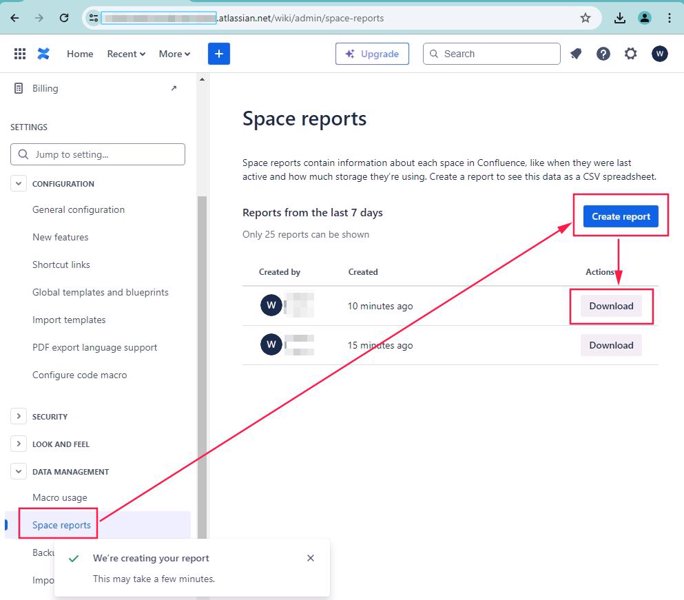
Create a space report at '/wiki/admin/space-reports'.
Those reports include a list of all spaces and the content count per space.
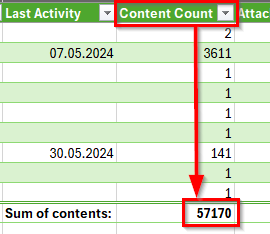
Sum up all those content counts for all spaces and you’ve got the overall “page count”.
Here’s an example of calculating the overall count (57170) in Excel:
This number is what determines the Page Count Tier for the WikiTraccs license.
Via Analytics
In Confluence Cloud, you can use the Analytics features to get insights into the number of pages. See the discussion here: Page Count?
Getting the page count from the REST API
Getting the page count from the REST API depends on too many factors like permissions, page restrictions and endpoints used. It is thus error-prone and not recommended.
Third-party solutions
Let me know which third-party solutions you’d recommend: Get in touch.