Activate and Configure Inventory Mode
To put WikiTraccs into inventory mode, click Tools in the WikiTraccs.GUI main menu, then Inventory Mode.

The WikiTraccs user interface will change and look like this:
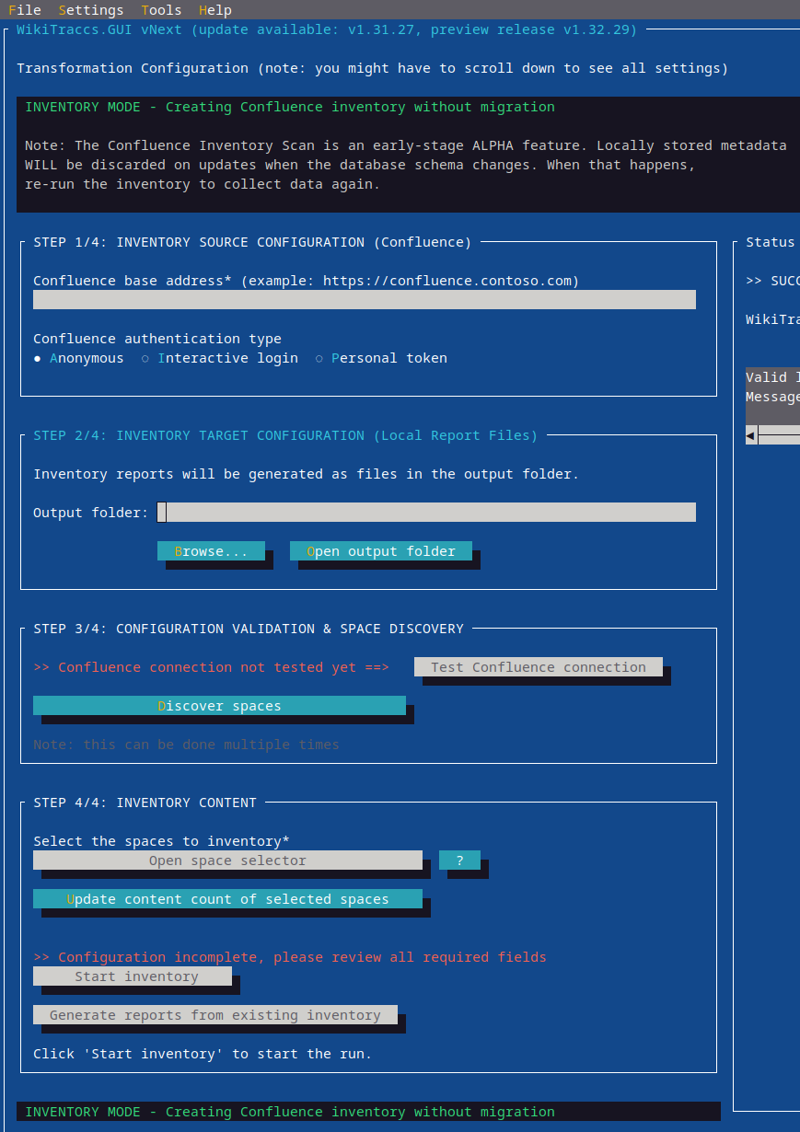
You configure the inventory scan in four steps:
- Step 1: Where is Confluence?
- Step 2: Where to store the reports?
- Step 3: What’s there in Confluence? Validate the Confluence connection and get the list of Confluence spaces.
- Step 4: What to inventory? Select spaces to inventory and start the inventory run.
Step 1: Where is Confluence?
Enter your Confluence base address.
This might look like:
https://wiki.contoso.com(Confluence on-premises)https://contoso.com/confluence(Confluence on-premises, with context path)https://contoso.atlassian.net/wiki(Confluence Cloud, always ends with/wiki)
Choose an appropriate authentication method (read more here: Authenticating with Confluence).
Step 2: Where to store the reports?
Choose a folder to store reports in.
Step 3: What’s there in Confluence?
Click Test Confluence connection to verify that WikiTraccs can communicate with Confluence.
If that worked, click Discover spaces. This gets the list of spaces from Confluence and stores it in a local database. You’ll choose spaces to inventory in the next step.
Step 4: What to inventory?
Click Open space selector to open the space selection dialog. Read more about the space selector here: Select Spaces to Inventory.
After choosing spaces to inventory, click Update content count of selected spaces.
Note
Although not strictly required, the page count update gives you an overview of how many pages WikiTraccs is allowed to see using the selected authentication method.Click Start inventory.
Every time when starting the inventory scan, you can choose how WikiTraccs handles attachments:
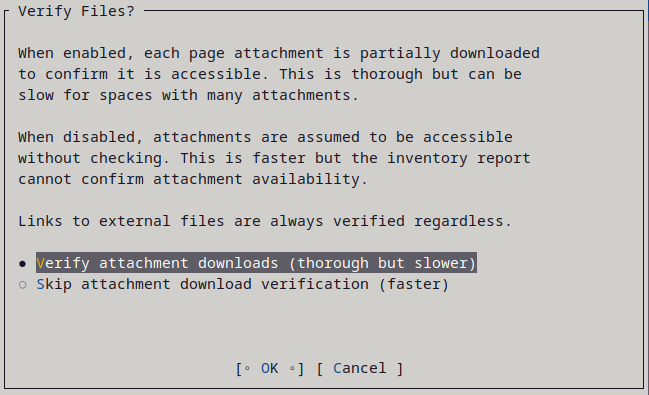
Verify attachment downloads will download the first few bytes of every attachment to verify this is working. This can uncover attachment-related errors that only surface when downloading attachment file from Confluence.
Skip attachment download verification will skip over attachments. This is much faster.
Click Generate report from existing inventory to generate a new report, that contains the following:
- if you never ran space discovery, an empty report will be generated
- if you ran space discovery, but never ran a content count update or inventory scan, a report will be generated showing the list of spaces
- if you ran content count update, but no inventory scan, a report will be generated showing the list of spaces and their content count
- if you ran an inventory scan, a report will be generated showing the collected data
- for partial (interrupted) scans, the reports will show incomplete data
Every click generates a new report.