You can assign waves to your content selectors in the Space Inventory.
When starting a migration, you can optionally specify the waves to migrate.
Note
Migration wave configuration is optional. When using WikiTraccs.GUI, leave the Waves & filters text box empty to migrate all checked Space Inventory selectors. The WT_Setting_Waves column is then ignored.
Waves only start to narrow the migration once you enter a wave into that text box.
Tip
The same field also supports filters for spaces and content IDs (note: starting with WikiTraccs v1.33.0). If you want to combine wave selection with ad-hoc filters, have a look at Include/Exclude Filters.What are waves?
In the context of WikiTraccs, waves are labels that you assign to selectors in the Space Inventory.
Those labels can be:
- numbers such as
1,2, or100 - names such as
pilot,review, orarchive
When starting a migration you can tell WikiTraccs which of those waves it should migrate.
Using waves you can prepare a multi-wave migration where each wave is assigned the same label.
Let’s look at an example:
Wave 1: Project Teams and Miscellaneous
- Space “Project Alpha” should be migrated to site “/sites/ProjectAlpha”
- Space “Project Beta” should be migrated to site “/sites/ProjectBeta”
- Space “Miscellaneous” should be migrated to site “/sites/Miscellaneous”
Wave 2: Client-Facing and Support Departments
- Space “Marketing” should be migrated to site “/sites/Marketing”
- Space “Sales” should be migrated to site “/sites/Sales”
- Space “Customer Service” should be migrated to site “/sites/CustomerService”
Wave 3: Core Operational Departments
- Space “HR” should be migrated to site “/sites/HR”
- Space “Finance” should be migrated to site “/sites/Finance”
- Space “IT” should be migrated to site “/sites/IT”
How to configure waves?
When configuring what to migrate in the Space Inventory, you use the WT_Setting_Waves column to assign a wave it belongs to.
Here’s what the Space Inventory list might look like:
| WT_In_CfSpaceName | WT_In_CfSpaceKey | Wt_Setting_RequestTransformation | WT_Setting_Waves | WT_Setting_TargetSiteRootUrl |
|---|---|---|---|---|
| Project Alpha | PALPHA | x | 1 | https://contoso.sharepoint.com/sites/ProjectAlpha |
| Project Beta | PBETA | x | 1 | https://contoso.sharepoint.com/sites/ProjectBeta |
| Miscellaneous | MISC | x | 1 | https://contoso.sharepoint.com/sites/Miscellaneous |
| Marketing | MRKT | x | 2 | https://contoso.sharepoint.com/sites/Marketing |
| Sales | SALES | x | 2 | https://contoso.sharepoint.com/sites/Sales |
| Customer Service | SERVICE | x | 2 | https://contoso.sharepoint.com/sites/CustomerService |
| HR | HR | x | 3 | https://contoso.sharepoint.com/sites/HR |
| Finance | FIN | x | 3 | https://contoso.sharepoint.com/sites/Finance |
| IT | IT | x | 3 | https://contoso.sharepoint.com/sites/IT |
Note: Other columns have been omitted for brevity.
With this configuration everything is prepared for a 3-wave migration.
What's a wave number?
Wave numbers are supposed to be:
- whole numbers
- equal to or larger than 1
Wave numbers don’t have to be consecutive. For example using 100, 200, and 300 (instead of 1, 2, and 3) is fine.
What's a wave name?
Wave names are also supported (note: starting with WikiTraccs v1.33.0).
Wave names are not case-sensitive. For example, pilot, Pilot, and PILOT all refer to the same wave.
Wave names:
- must not contain spaces
- must not contain commas
- must not contain
* - must not contain
: - must not contain
; - must not contain
# - must not contain
+
Examples: pilot, review, archive2026, pilot-phase
How to choose waves to migrate?
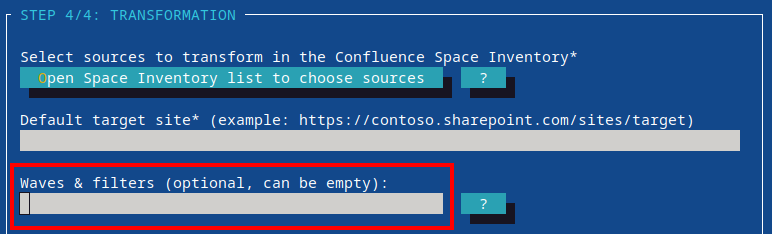
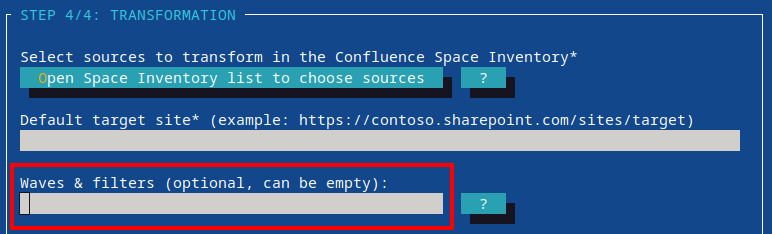
In WikiTraccs.GUI you can enter wave clauses into the Waves & filters text box right above the Start transformation button:
Note
Selecting waves is optional. Leave the Waves & filters text box empty to migrate all checked selectors, no matter what their WT_Setting_Waves value is. A run like this ignores waves completely.
As soon as you enter a wave, waves do the filtering: a selector then needs a matching wave, and selectors with an empty WT_Setting_Waves value are skipped.
Entering only filters (like +id:12345) is not a wave selection. Waves stay ignored in that case, and the filter narrows what gets migrated.
Tip
The same input field also supports filter clauses (note: starting with WikiTraccs v1.33.0). Use those when you want to include or exclude specific spaces or content IDs in addition to the selected waves. For details and examples, see Include/Exclude Filters.You can choose multiple waves to migrate.
Use commas, spaces, or a mix of both to separate wave clauses (note: only commas are supported prior to WikiTraccs v1.33.0).
Here are supported ways of selecting waves:
| Wave selection example | Description |
|---|---|
| 1 | Migrate wave 1 |
| 1 2 3 | Migrate waves 1, 2, and 3 |
| 1,2,3 | Migrate waves 1, 2, and 3 |
| 1-3 | Migrate waves 1, 2, and 3 |
| 1,4-6,8 | Migrate waves 1, 4, 5, 6, and 8 |
| pilot | Migrate the named wave pilot |
| pilot review | Migrate the named waves pilot and review |
| pilot, 2, review | Migrate the named waves pilot and review and wave 2 |
| -4 | Migrate all waves up to and including 4 |
| 4- | Migrate all waves equal to or greater than 4 |
| 1,4- | Migrate wave 1 and all waves equal to or greater than 4 |
| * | Migrate all selectors with wave configuration, but skip selectors with empty WT_Setting_Waves column |
| Migrate all checked selectors, ignoring the WT_Setting_Waves column |
Tip
Above syntax is also valid in the WT_Setting_Waves column. This can be useful to include selectors in multiple migration waves.Note
For a Space Inventory entry to be considered at all for migration, the Wt_Setting_RequestTransformation field has to be checked. This is a requirement independent of any wave configuration.Waves in Content Decision Lists
Note: Content Decision Lists are available as of WikiTraccs v1.37
For a Content Decision List, wave selection happens in two stages:
- The Space Inventory selector must pass the rules above.
- For an admitted selector, the effective wave of each Content Decision List row can narrow the selection further.
An empty or whitespace-only planned row wave inherits the nearest applicable ancestor wave. If no ancestor supplies a wave, the effective row wave stays empty and adds no restriction beyond the admitted Space Inventory selector. Any other row value is an explicit wave expression and must overlap the selected run wave. A * run still skips a Space Inventory selector with no assigned wave, but blank rows inside an admitted selector remain included.
Note
Rows behave differently than Space Inventory selectors when the Waves & filters text box is empty.
Selectors ignore their waves in such a run and all of them migrate. A row with an effective wave, however, is held back, because there is no run wave its wave could match. Only rows with an empty effective wave migrate.
So: to migrate rows that carry a wave, select that wave (or *) for the run.
Use cases for waves
Waves are used to partition the migration into different chunks.
Those chunks can then be
- migrated one after another
- migrated in parallel by multiple WikiTraccs instances
Have a look at the How to run parallel WikiTraccs migrations blog post about the latter use case.