Page Refinement
This article covers page refinements that can be applied to migrated pages in SharePoint Online.
Note: Page Refinement is available as of WikiTraccs v1.28.0
What is Page Refinement?
Page refinements are changes to already migrated pages in SharePoint Online.
In Page Refinement Mode, WikiTraccs will analyze and optionally modify migrated pages.
Currently supported refinement actions are:
- check SharePoint pages for broken links and log those
- fix broken links if the correct target page for a link can be found; this also logs all links and the modification result
- change SharePoint page links to open in the same browser tab instead of in a new tab
How to Activate Page Refinement Mode?
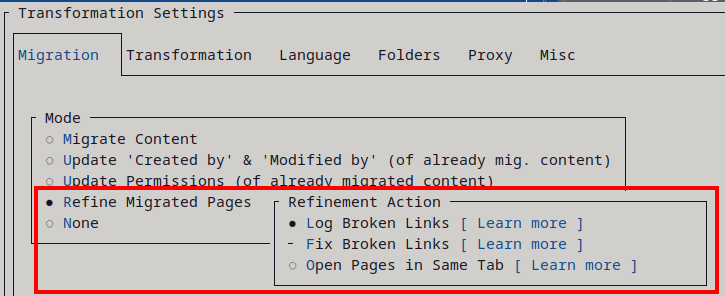
Page Refinement Mode can be activated in the WikiTraccs settings:
Page Refinement Actions
Refer to any of the child articles for more details:
1 - Page Refinement - Log Broken Links
This article documents the ability of WikiTraccs to check already migrated pages for broken links.
Note: Page Refinement is available as of WikiTraccs v1.28.0
Getting Started Quickly
Here’s how to enable and start the check for broken links:
- Enable Page Refinement mode:
- in the menu bar of WikiTraccs.GUI, click Settings ⇒ Configure Transformation to open the settings dialog
- as Mode select Refine Migrated Pages
- check only the Log Broken Links action
- click Ok to save the settings and close the settings dialog
- Choose selectors in the Space Inventory list, just as you would before starting an actual migration
- Click Start Transformation to start
Note that WikiTraccs highlights the chosen mode (so you can be sure it’s the right one), here Refine - Log Links:
Prerequisites for Logging Broken Links
You need migrated pages. If you did not migrate pages, yet, searching for broken links doesn’t make sense.
Granularity of the Check
WikiTraccs checks SharePoint sites. Within each site, only the pages that WikiTraccs migrated from the currently configured source Confluence are checked - that is, pages whose source-tenant marker matches the Confluence base URL set in your WikiTraccs source configuration. Pages from a different source (migrated from another Confluence instance, or pages that WikiTraccs didn’t migrate at all) are skipped.
Within that scope, the configured migration wave name and include/exclude filters gate refinement the same way they gate migration.
How to Select Sites to Check
Just as when migrating content, you’ll use the Space Inventory list to tell WikiTraccs which sites to check.
In the Space Inventory, WikiTraccs looks for selectors that are marked for transformation (those have a check mark set in the WT_Setting_RequestTransformation column).
For all selectors marked for transformation, WikiTraccs collects the target sites. That’s the value you entered in the WT_Setting_TargetSiteRootUrl column (hopefully before migrating content).
Those are the sites that WikiTraccs will check.
Where to Find the Link Report
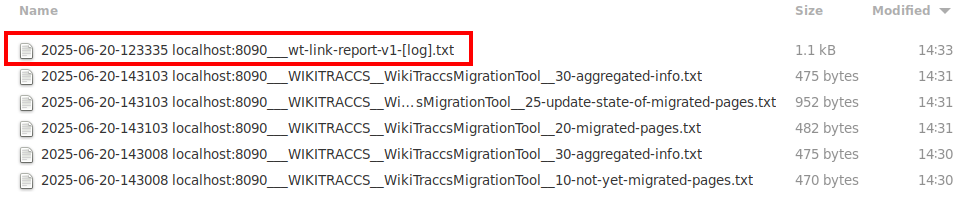
WikiTraccs stores the link report in its WikiTraccs.GUI\logs folder.
You can use the Open Log Folder button to open the folder:
The link report file name looks like 2025-06-20-123335 localhost:8090___wt-link-report-v1-[log].txt:
The file name will look different for you, as the date and time of the migration run, as well as the Confluence base address are part of it.
One link report file per day will be created. If you start the check for broken links multiple times per day, WikiTraccs will continue to add to this file. Already checked pages won’t be checked again.
You can delete this file to start over.
The file content looks like this (note: sample for three broken links and no fix possible):
https://contoso.sharepoint.com/sites/WikiTraccsMigrationTool/SitePages/WIKITRACCS-WikiTraccs---Confluence-to-SharePoint-Migration-Tool-35848209.aspx	12	1.0	/sites/Default/SitePages/TREE-WikiPakk---SharePoint-Page-Tree-35848215.aspx	?	ContentSnapshotNotFound,SharePointSearchNoHit
https://contoso.sharepoint.com/sites/WikiTraccsMigrationTool/SitePages/WIKITRACCS-Metadata-for-the-WikiPakk-Page-Tree-35848235.aspx	14	1.0	/sites/Default/SitePages/TREE-WikiPakk---SharePoint-Page-Tree-35848215.aspx	?	ContentSnapshotNotFound,SharePointSearchNoHit
https://contoso.sharepoint.com/sites/WikiTraccsMigrationTool/SitePages/WIKITRACCS-Metadata-for-the-WikiPakk-Page-Tree-35848235.aspx	14	1.0	/sites/Default/SitePages/TREE-Scripting-the-Page-Hierarchy-35848233.aspx	?	ContentSnapshotNotFound,SharePointSearchNoHit
https://contoso.sharepoint.com/sites/WikiTraccsMigrationTool	14	Site Processing Checkpoint (UTC 2025-06-20 12:33:50, 4 pages checked in this run)	wt-checkpoint	638860196303631858
The file content could also look like this (note: sample for three broken links and three fix candidates found):
https://contoso.sharepoint.com/sites/WikiTraccsMigrationTool/SitePages/WIKITRACCS-WikiTraccs---Confluence-to-SharePoint-Migration-Tool-35848209.aspx	12	1.0	/sites/Default/SitePages/TREE-WikiPakk---SharePoint-Page-Tree-35848215.aspx	/sites/WikiPakkPageTree/SitePages/TREE-WikiPakk---SharePoint-Page-Tree-35848215.aspx	ContentSnapshotFoundWithDifferentLink
https://contoso.sharepoint.com/sites/WikiTraccsMigrationTool/SitePages/WIKITRACCS-Metadata-for-the-WikiPakk-Page-Tree-35848235.aspx	14	1.0	/sites/Default/SitePages/TREE-WikiPakk---SharePoint-Page-Tree-35848215.aspx	/sites/WikiPakkPageTree/SitePages/TREE-WikiPakk---SharePoint-Page-Tree-35848215.aspx	ContentSnapshotFoundWithDifferentLink
https://contoso.sharepoint.com/sites/WikiTraccsMigrationTool/SitePages/WIKITRACCS-Metadata-for-the-WikiPakk-Page-Tree-35848235.aspx	14	1.0	/sites/Default/SitePages/TREE-Scripting-the-Page-Hierarchy-35848233.aspx	/sites/WikiPakkPageTree/SitePages/TREE-Scripting-the-Page-Hierarchy-35848233.aspx	ContentSnapshotFoundWithDifferentLink
https://contoso.sharepoint.com/sites/WikiTraccsMigrationTool	14	Site Processing Checkpoint (UTC 2025-06-20 12:55:40, 4 pages checked in this run)	wt-checkpoint	638860209402343386
https://contoso.sharepoint.com/sites/WikiPakkPageTree	4	Site Processing Checkpoint (UTC 2025-06-20 12:55:40, 2 pages checked in this run)	wt-checkpoint	638860209406942630
Each line contains multiple values separated by the tab character. Those values are:
- Page URL - the SharePoint page that WikiTraccs checked
- example:
https://contoso.sharepoint.com/sites/WikiTraccsMigrationTool/SitePages/WIKITRACCS-WikiTraccs---Confluence-to-SharePoint-Migration-Tool-35848209.aspx
- Page Item ID - the SharePoint list item ID in the Site Pages library
- Page Version - the page version
- Link - link that couldn’t be verified (note: verified links are not logged)
- example:
/sites/Default/SitePages/TREE-WikiPakk---SharePoint-Page-Tree-35848215.aspx
- New Link - if WikiTraccs found the page in another site, this is the link; or
? if no link target could be found- example:
/sites/WikiPakkPageTree/SitePages/TREE-WikiPakk---SharePoint-Page-Tree-35848215.aspx
- Result - the verification result, indicating where WikiTraccs checked and how it went
- example:
ContentSnapshotNotFound,SharePointSearchNoHit - example:
ContentSnapshotFoundWithDifferentLink
Lines with the keyword wt-checkpoint are checkpoints set by WikiTraccs so it knows where to continue, should a tranformation run be interrupted and restarted.
How does WikiTraccs Identify Broken Links?
WikiTraccs extracts the space key and page ID from links. This is possible since links to migrated SharePoint pages follow the naming scheme SPACEKEY-some-title-PAGEID.aspx.
Having the space key and the page ID, WikiTraccs looks up the page in the Confluence Content Snapshots list (in the WikiTraccs site). For every page that WikiTraccs migrates, the target URL of the migrated page is stored there as well.
If WikiTraccs doesn’t find an entry in the Confluence Content Snapshots list, it will try to find the target page via SharePoint Search.
When WikiTraccs finds an “authoritative” URL using any of the methods above, it will compare this URL with the link it found in the page. WikiTraccs detects if the authoritative URL points to a different site than the link that is currently in the page.
If the authoritative URL and the link in the page differ, or the link couldn’t be verified at all, then this will be added to the link report file.
Limitations
The following limitations apply:
- performance is not at its peak, yet
- links in text web parts are checked; links in other web parts (for example image web part) are not handled
- handling of page links only; no @-mentions (yet)
- WikiTraccs only handles links to pages that follow its naming scheme:
SPACEKEY-some-title-PAGEID.aspx
For details, refer to issue [WikiTraccs] [Feature] Find and fix broken links #152.
2 - Page Refinement - Fix Broken Links
This article documents the ability of WikiTraccs to fix broken links.
Note: Fixing Broken Links is available as of WikiTraccs v1.28.8.
Getting Started Quickly
Here’s how to enable and start fixing broken links:
- Enable Page Refinement mode:
- in the menu bar of WikiTraccs.GUI, click Settings ⇒ Configure Transformation to open the settings dialog
- as Mode select Refine Migrated Pages
- check the Fix Broken Links action
- click Ok to save the settings and close the settings dialog
- Choose selectors in the Space Inventory list, just as you would before starting an actual migration
- Click Start Transformation to start
Note that WikiTraccs highlights the chosen mode (so you can be sure it’s the right one), here Refine - Fix Links (since “Fix” implies logging, the label omits “Log Links”):
Further Reading
Please refer to the Log Broken Links page about the following topics, as they also apply to fixing links:
- Prerequisites
- Granularity
- How to Select Sites
- Where to Find the Link Report
- How does WikiTraccs Identify Broken Links
- Limitations
Tutorial Video
This 18-minute video shows where broken links come from and how to fix them.
The video shows two migration waves, the first of which creates broken links, and the configuration involved. Then it shows how to run the link fixer to fix those links.
How to See Which Links Where Fixed
The link report file (see Where to Find the Link Report for details about that) for the fix action contains additional status values:
ResultSkippedLink - link could not be fixed (either because the page was not found in SharePoint, or because multiple pages were found)ResultSuccessReplacedSomething - link was replaced by new (working) link
Also, the new page version is logged. Note that each changed web part increases the major page version by one, so, updating three text web parts on a page will increase the major page version by three.
3 - Page Refinement - Log User Mentions
This article documents the ability of WikiTraccs to check already migrated pages for user mentions that can be refined.
Note: Logging User Mentions is available as of WikiTraccs v1.33.28
Getting Started Quickly
Here’s how to enable and start the check for user mentions:
- Enable Page Refinement mode:
- in the menu bar of WikiTraccs.GUI, click Settings ⇒ Configure Transformation to open the settings dialog
- as Mode select Refine Migrated Pages
- check only the Log User Mentions action
- click Ok to save the settings and close the settings dialog
- Choose selectors in the Space Inventory list, just as you would before starting an actual migration
- Click Start Transformation to start
Note that WikiTraccs highlights the chosen mode (so you can be sure it’s the right one), here Refine - Log Mentions:
Prerequisites for Logging User Mentions
You need migrated pages. If you did not migrate pages, yet, checking user mentions doesn’t make sense.
The log action reports on two things at once: user mentions that are already correct (validated no-change) and user mentions that would benefit from a rewrite because a mapping was added, changed, or is missing. The most typical trigger is a change to the WikiTraccs User Mappings list (in the WikiTraccs site) after the initial migration - new mapping rows make previously-unmapped mentions resolvable, and edited rows shift existing mentions to a different target. The log run surfaces both cases so you can decide whether to follow up with the fix action.
You don’t need a fully populated mappings list for the log to be useful. If a mapping is missing, the report records the mention as MentionMappingMissing, which is itself an actionable result - it tells you which source users need a mapping row added before fixing can take effect.
Granularity of the Check
WikiTraccs checks SharePoint sites. Within each site, only the pages that WikiTraccs migrated from the currently configured source Confluence are checked - that is, pages whose source-tenant marker matches the Confluence base URL set in your WikiTraccs source configuration. Pages from a different source (migrated from another Confluence instance, or pages that WikiTraccs didn’t migrate at all) are skipped.
Within that scope, the configured migration wave name and include/exclude filters gate refinement the same way they gate migration.
How to Select Sites to Check
Just as when migrating content, you’ll use the Space Inventory list to tell WikiTraccs which sites to check.
In the Space Inventory, WikiTraccs looks for selectors that are marked for transformation (those have a check mark set in the WT_Setting_RequestTransformation column).
For all selectors marked for transformation, WikiTraccs collects the target sites. That’s the value you entered in the WT_Setting_TargetSiteRootUrl column (hopefully before migrating content).
Those are the sites that WikiTraccs will check.
Where to Find the Mention Report
WikiTraccs stores the mention report in its WikiTraccs.GUI\logs folder.
You can use the Open Log Folder button to open the folder:
The mention report file name looks like 2025-06-20-123335 localhost:8090___wt-mention-report-v1-[log].txt.
The file name will look different for you, as the date and time of the refinement run, as well as the Confluence base address are part of it.
One mention report file per day will be created. If you start the check for user mentions multiple times per day, WikiTraccs will continue to add to this file. Already checked pages won’t be checked again.
You can delete this file to start over.
The mention report is its own file, separate from the broken-links report. Both files can exist side by side when both refinement actions are enabled.
The file content looks like this (note: header row plus sample data rows for three mentions):
SourcePage	ItemId	Version	OldLink	NewLink	State	VersionAfterUpdate	MentionSourceMri	MentionResolutionMode	MentionRegistryResolution	MentionMatchedMappingCount	MentionTargetUpn	MentionTargetDisplayName	MentionSourceDisplayName
https://contoso.sharepoint.com/sites/WikiTraccsMigrationTool/SitePages/WIKITRACCS-Welcome-35848209.aspx	12	1.0	/_layouts/15/sharepoint.aspx?q=heu%40old.com&v=%2Fsearch%2Fpeople&wtmri=user:name:atlassian:|onprem|heu&wtmdn=Heinrich&wtmsn=Heinrich Ulbricht	/_layouts/15/sharepoint.aspx?q=henry%40contoso.com&v=%2Fsearch%2Fpeople&wtmri=user:name:atlassian:|onprem|heu&wtmdn=Henry U&wtmsn=Heinrich Ulbricht	MentionUrlUpdated,MentionTextUpdated			user:name:atlassian:|onprem|heu	Tier1Real	CacheHitRich	1	[email protected]	Henry U	Heinrich Ulbricht
https://contoso.sharepoint.com/sites/WikiTraccsMigrationTool/SitePages/WIKITRACCS-Welcome-35848209.aspx	12	1.0	/_layouts/15/sharepoint.aspx?q=unknown%40old.com&v=%2Fsearch%2Fpeople&wtmri=user:name:atlassian:|onprem|unknown	?	MentionMappingMissing			user:name:atlassian:|onprem|unknown	Tier1Real	CacheMissDummyFallback	0
https://contoso.sharepoint.com/sites/WikiTraccsMigrationTool	14	Site Processing Checkpoint (UTC 2025-06-20 12:33:50, 4 pages checked in this run)	wt-checkpoint	638860196303631858
Each line contains multiple values separated by the tab character. The first line is a header row documenting the columns; data rows follow the same column layout. The columns are:
- SourcePage - the SharePoint page that WikiTraccs checked
- example:
https://contoso.sharepoint.com/sites/WikiTraccsMigrationTool/SitePages/WIKITRACCS-Welcome-35848209.aspx
- ItemId - the SharePoint list item ID in the Site Pages library
- Version - the page version
- OldLink - the mention link as it currently appears in the page
- example:
/_layouts/15/sharepoint.aspx?q=heu%40old.com&v=%2Fsearch%2Fpeople&wtmri=user:name:atlassian:|onprem|heu&wtmdn=Heinrich
- NewLink - the mention link WikiTraccs would write (or
? if no target could be resolved)- example:
/_layouts/15/sharepoint.aspx?q=henry%40contoso.com&v=%2Fsearch%2Fpeople&wtmri=user:name:atlassian:|onprem|heu&wtmdn=Henry U&wtmsn=Heinrich Ulbricht
- State - the classification result, indicating what WikiTraccs decided to do
- example:
MentionUrlUpdated,MentionTextUpdated - example:
MentionMappingMissing - example:
MentionValidatedNoChange
- VersionAfterUpdate - the SharePoint page version after the refinement run wrote changes (empty for log-only runs)
- MentionSourceMri - the source Confluence user’s identifier that WikiTraccs extracted from the anchor (the
wtmri URL parameter added during migration)- example:
user:name:atlassian:|onprem|heu
- MentionResolutionMode - which recognition path WikiTraccs used
Tier1Real - the anchor carries a real source-user identifier (the normal case)Tier1Placeholder - the anchor carries a null-placeholder identifier (historical anchor from before user info was captured)Tier1Legacy - the anchor has the source-user identifier but no display-name breadcrumb (from before display names were captured in the URL)Tier2Promoted - the anchor pre-dates the MRI breadcrumb entirely; WikiTraccs recovered the source user via the email heuristicTier2Ambiguous - same as above, but more than one mapping row matched the emailTier2NoMatch - tier-2 candidate, but the email heuristic yielded no mapping row
- MentionRegistryResolution - how WikiTraccs looked up the source user in its local cache
CacheHitRich - user found with full breadcrumbs (best case)CacheHitBare - user found but only with mapping-derived dataCacheMissDummyFallback - user not in the cache; WikiTraccs used a minimal fallbackNotAttempted - placeholder anchors and tier-2 paths don’t hit the cache
- MentionMatchedMappingCount - how many rows in the WikiTraccs User Mappings list matched the source user
0 - no match (reported as MentionMappingMissing)1 - unique match (the rewrite uses this row)>=2 - ambiguous match (reported as MentionMappingAmbiguous; no rewrite)
- MentionTargetUpn - the mapped SharePoint user’s UPN (empty when no mapping was found; a comma-separated list for ambiguous matches)
- MentionTargetDisplayName - the display name used for the anchor text (falls back to the UPN when the mapping has no title)
- MentionSourceDisplayName - the source Confluence user’s display name (audit breadcrumb; the
wtmsn URL parameter)- example:
Heinrich Ulbricht
Lines with the keyword wt-checkpoint are checkpoints set by WikiTraccs so it knows where to continue, should a refinement run be interrupted and restarted. Checkpoint rows are padded with empty columns to keep the TSV rectangular so external tools (Excel, pandas, Import-Csv) can read the whole file as a uniform table.
How does WikiTraccs Identify User Mentions?
WikiTraccs looks for anchors that point to the SharePoint people search endpoint (/_layouts/15/sharepoint.aspx?v=/search/people). Those anchors are the shape WikiTraccs itself produces for user mentions during migration.
During migration, WikiTraccs adds breadcrumbs to the anchor’s URL so it can later recognize which Confluence user the mention originally pointed to:
wtmri - the source Confluence user’s identifier (present for pages migrated with recent WikiTraccs versions)wtmdn - the display name that ended up in the anchor textwtmsn - the source Confluence display name (for auditing purposes)
Having the wtmri, WikiTraccs reconstructs the source Confluence user and looks up the matching row in the WikiTraccs User Mappings list. That’s the same list you maintain for user-metadata mapping during migration. The mapping row’s WT_Setting_MapForDataAndMentions column provides the mapped SharePoint user.
For pages migrated before the wtmri breadcrumb was added, WikiTraccs falls back to a tier-2 heuristic: it compares the anchor’s q parameter (usually the source user’s email) against the WT_In_EmailAddress column of the mapping list. If exactly one row matches, WikiTraccs promotes it to a tier-1-style mention for rewriting.
When WikiTraccs finds a unique mapping row, it builds the “authoritative” mention URL from the mapped target user and compares it with the link in the page. If the authoritative URL and the link in the page differ, or the mapping couldn’t be resolved at all, then this will be added to the mention report file.
Limitations
The following limitations apply:
- user mentions only (no group mentions)
- mention fixing requires the source Confluence user to be present in the WikiTraccs User Mappings list; unmapped users are reported as
MentionMappingMissing - mentions in text web parts are checked; mentions in other web parts are not handled
- WikiTraccs only recognizes mention anchors that follow its own shape (those it produced during migration)
4 - Page Refinement - Fix User Mentions
This article documents the ability of WikiTraccs to fix user mentions in already migrated pages.
Note: Fixing User Mentions is available as of WikiTraccs v1.33.28.
Getting Started Quickly
Here’s how to enable and start fixing user mentions:
- Enable Page Refinement mode:
- in the menu bar of WikiTraccs.GUI, click Settings ⇒ Configure Transformation to open the settings dialog
- as Mode select Refine Migrated Pages
- check the Fix User Mentions action
- click Ok to save the settings and close the settings dialog
- Choose selectors in the Space Inventory list, just as you would before starting an actual migration
- Click Start Transformation to start
Note that WikiTraccs highlights the chosen mode (so you can be sure it’s the right one), here Refine - Fix Mentions (since “Fix” implies logging, the label omits “Log Mentions”):
Further Reading
Please refer to the Log User Mentions page about the following topics, as they also apply to fixing user mentions:
- Prerequisites
- Granularity
- How to Select Sites
- Where to Find the Mention Report
- How does WikiTraccs Identify User Mentions
- Limitations
How to See Which Mentions Were Fixed
The mention report file (see Where to Find the Mention Report for details about that) for the fix action contains additional status values in the State column:
MentionUrlUpdated - the anchor’s href was rewritten to point at the mapped target userMentionTextUpdated - the visible anchor text was rewritten to show the mapped target display nameMentionValidatedNoChange - the anchor already matches the mapped target; nothing needed to be writtenMentionTextPreservedDueToEdit - the anchor’s visible text had been edited after migration; WikiTraccs did not overwrite itMentionNestedFormattingPreserved - the anchor contains nested formatting (for example <strong>); WikiTraccs only updated the href and left the inner markup aloneMentionLegacyUrlOnly - the anchor pre-dates the display-name breadcrumb; only the href was rewritten, the visible text was left as-isMentionLegacyNoWtmriUrlOnly - tier-2 promotion (the anchor had no wtmri); only the href was rewrittenMentionMappingMissing - no mapping row was found for the source user; this anchor was left as-isMentionMappingAmbiguous - more than one mapping row matched; this anchor was left as-is; the ambiguous UPNs are listed in the report for your inspectionMentionPlaceholderSkipped - the anchor carries a null-placeholder source-user identifier; WikiTraccs could not look up a target and left this anchor as-is
Also, the new page version is logged in the VersionAfterUpdate column. Note that each changed web part increases the major page version by one, so, updating mentions in three text web parts on a page will increase the major page version by three.
5 - Page Refinement - Open Links in Same Browser Tab
This article documents the ability of WikiTraccs to change page links that traditionally openend in new browser tabs to open in the same tab instead.
Note: This refinement action is available as of WikiTraccs v1.31.20
When migrating content from Confluence to SharePoint, WikiTraccs converts Confluence links to SharePoint links.
Links between Confluence pages become links between SharePoint pages, after the migration. By default, those page links open in a new browser tab when being clicked by a user.
Use the Open Pages in Same Tab refinement action, to change the page links to open in the same browser tab instead.
Steps
First, migrate pages from Confluence to SharePoint, which will create page links that open in a new tab.
After migrating, as a post processing step, run the Open Pages in Same Tab refinement action which will modify the links to open in the same browser tab instead.
6 - Page Refinement - Fix Web Part Drift
This article documents the ability of WikiTraccs to detect and rewrite web part properties on already migrated pages that have drifted from the current SharePoint page format.
Note: Web Part Drift handling is available as of WikiTraccs v1.34.11
Note: This refinement is rolling out in two stages. Log mode is available now, so you can scan your migrated pages and see which web parts would be affected. Fix mode, which writes the corrections back to the page, will follow in a later release. The settings dialog only shows the Fix toggle once that stage ships.
Some migrated pages carry Image or Code Snippet web part properties that can collide with the current SharePoint page editor behavior - rarely visible, but able to cause a web part reset on first edit. This Page Refinement mode finds those pages and, in fix mode, rewrites the property in place.
Why Web Part Drift Happens on Migrated Pages
Migrated pages themselves are frozen - WikiTraccs writes them once and they sit untouched on SharePoint until somebody edits them.
Microsoft’s SharePoint page format, on the other hand, keeps evolving. Over time, SharePoint refines how it interprets certain web part properties, and WikiTraccs itself refines how it sets them during migration. A page that was a perfect fit for the format at migration time may, later on, benefit from an adjustment to align with the current format.
As long as nobody edits a page, the alignment doesn’t matter and the page just works. The difference becomes visible the moment a user opens the page in edit mode, where SharePoint re-evaluates the property values.
Re-migrating just to close that gap is rarely an option. By the time a refinement like this becomes relevant, Confluence has often already been replaced by SharePoint and the source content isn’t available to re-migrate from. What’s needed is a way to change a single web part property in place, on the pages that need it, without re-running migration.
That’s what this refinement mode does. WikiTraccs scans already migrated pages, identifies web parts whose properties match a known drift signature, and either logs them (so you can see what’s affected) or rewrites them (so the page behaves correctly going forward).
What gets Corrected
There is currently one drift correction:
Editor pop-ups on already-configured Image and Code Snippet web parts (report Kind: AddedFromPersistedData)
This only matters when a user opens a migrated page in edit mode. Reading or viewing a migrated page is never affected - the page renders correctly to viewers, and the flag has no influence on what they see. The whole behavior described below happens inside the SharePoint page editor only; if nobody edits the affected pages, the refinement is not needed.
Each Image and Code Snippet web part carries a flag whose role is to tell the page editor “show the setup helper when it’s needed” - the file picker for an image, the empty editor surface for a code snippet. On a migrated page the image has already been chosen and the code snippet has already been filled in, so the helper is not needed.
In practice, the editor usually stays out of the way. But under certain conditions it decides to show the helper anyway, and that can come with a web part reset as a side effect - the chosen image is not displayed anymore, the code snippet content is empty. This has been observed under tight memory conditions and when pages are opened in a specific way (for example scrolling very fast, or jumping straight to the end of the page, while the editor loads). The exact mechanism isn’t fully pinned down, but it looks like a timing-sensitive interaction between a one-shot update script that Microsoft runs over the page on first edit and the editor’s own initialization logic.
If a such a reset has happened on a page, two mitigations are available without needing this refinement at all: Ctrl+Z in the editor undoes the change (the image reappears on Image web parts), and the SharePoint page version history lets you roll the page back to the version before the edit. The refinement here is about preventing the trip in the first place.
This refinement sets the flag to the value that says “this web part doesn’t need the first-run editor, I’m sure”. With the flag set this way, neither the Microsoft update script nor the editor has a reason to act on the web part, regardless of which side of the timing race lands first, and the existing image and code snippet content are left alone. Pages migrated with WikiTraccs v1.33.17 or newer already carry that value and don’t need the refinement.
Two Modes: Log and Fix
This refinement supports the same two modes as the link and mention refinements:
- Log Web Part Drift - scan pages, detect drift, write a report; no page changes
- Fix Web Part Drift - same scan, plus rewrite the affected property and save the page; “Fix” implies “Log”, so the report is always written
Use the log mode first to get a feel for how many pages and web parts would be touched. Switch to fix mode when you are ready to apply the change.
How to Enable Web Part Drift Refinement
Here’s how to enable and start the check:
- Enable Page Refinement mode:
- in the menu bar of WikiTraccs.GUI, click Settings ⇒ Configure Transformation to open the settings dialog
- as Mode select Refine Migrated Pages
- check either Log Web Part Drift (log only) or Fix Web Part Drift (log + rewrite)
- click Ok to save the settings and close the settings dialog
- Choose selectors in the Space Inventory list, just as you would before starting an actual migration
- Click Start Transformation to start
WikiTraccs highlights the chosen mode in the GUI: Refine - Log WP Drift or Refine - Fix WP Drift (since “Fix” implies logging, the label omits “Log WP Drift”).
Prerequisites
You need migrated pages. If you did not migrate pages, yet, checking for web part drift doesn’t make sense.
Which Migrated Pages Get Checked
WikiTraccs checks SharePoint sites. Within each site, only the pages that WikiTraccs migrated from the currently configured source Confluence are checked - that is, pages whose source-tenant marker matches the Confluence base URL set in your WikiTraccs source configuration. Pages from a different source (migrated from another Confluence instance, or pages that WikiTraccs didn’t migrate at all) are skipped.
Within that scope, the configured migration wave name and include/exclude filters gate refinement the same way they gate migration.
How to Select Sites to Check
Just as when migrating content, you’ll use the Space Inventory list to tell WikiTraccs which sites to check.
In the Space Inventory, WikiTraccs looks for selectors that are marked for transformation (those have a check mark set in the WT_Setting_RequestTransformation column).
For all selectors marked for transformation, WikiTraccs collects the target sites. That’s the value you entered in the WT_Setting_TargetSiteRootUrl column (hopefully before migrating content).
Those are the sites that WikiTraccs will check.
Where to Find the Web Part Drift Report
WikiTraccs stores the drift report in its WikiTraccs.GUI\logs folder.
You can use the Open Log Folder button in the GUI to open the folder.
The drift report file name looks like:
2025-06-20-123335 localhost:8090___wt-webpart-property-drift-report-v1-[log].txt (log mode)2025-06-20-123335 localhost:8090___wt-webpart-property-drift-report-v1-[fix].txt (fix mode)
The file name will look different for you, as the date and time of the refinement run, as well as the Confluence base address are part of it.
One drift report file per day and per mode will be created. If you start the check multiple times per day in the same mode, WikiTraccs will continue to add to this file. Already checked pages won’t be checked again.
You can delete this file to start over.
The drift report is its own file, separate from the link and mention reports. All three files can exist side by side when more than one refinement action is enabled.
The file content looks like this (note: sample for two image web parts being adjusted on different pages):
https://contoso.sharepoint.com/sites/WikiTraccsMigrationTool/SitePages/WIKITRACCS-Welcome-35848209.aspx	12	1.0	Image	abc123-...	AddedFromPersistedData	Set addedFromPersistedData=true on Image web part	data-sp-controldata.addedFromPersistedData	false	true	ResultSuccessReplacedSomething	2.0
https://contoso.sharepoint.com/sites/WikiTraccsMigrationTool/SitePages/WIKITRACCS-Topology-35848211.aspx	14	1.0	CodeSnippet	def456-...	AddedFromPersistedData	Set addedFromPersistedData=true on CodeSnippet web part	data-sp-controldata.addedFromPersistedData	false	true	ResultSuccessReplacedSomething	2.0
https://contoso.sharepoint.com/sites/WikiTraccsMigrationTool	14	Site Processing Checkpoint (UTC 2025-06-20 12:33:50, 4 pages checked in this run)	wt-checkpoint	638860196303631858
Each line contains multiple values separated by the tab character. The columns are:
- SourcePage - the SharePoint page that WikiTraccs checked
- example:
https://contoso.sharepoint.com/sites/WikiTraccsMigrationTool/SitePages/WIKITRACCS-Welcome-35848209.aspx
- ItemId - the SharePoint list item ID in the Site Pages library
- Version - the page version before the refinement run
- WebPartType - the human-readable web part type label
- example:
Image, CodeSnippet
- WebPartId - the web part instance identifier on the page
- Kind - the stable identifier of the drift analyzer that produced this row
- example:
AddedFromPersistedData
- Description - a short human-readable description of the change
- example:
Set addedFromPersistedData=true on Image web part
- Path - the property location inside the web part
- example:
data-sp-controldata.addedFromPersistedData
- ValueBefore - the property value as found in the page
- ValueAfter - the property value WikiTraccs would write (or did write, in fix mode)
- State - the result classification (a comma-separated list of flags); empty for log-only rows that detected drift without attempting a write
- example:
ResultSuccessReplacedSomething - fix mode, the change was written - example:
ResultErrorWebPartSkippedDueToUnexpectedChange - the web part changed in a way that no longer matches the drift signature; left as-is - example:
ResultErrorSentinelMismatch - a pre-save consistency check detected that saving would have altered web part properties beyond the declared change; the save was skipped and the page left untouched
- VersionAfterUpdate - the SharePoint page version after the refinement run wrote changes (empty for log-only runs)
Lines with the keyword wt-checkpoint are checkpoints set by WikiTraccs so it knows where to continue, should a refinement run be interrupted and restarted. Checkpoint rows are padded with empty columns to keep the TSV rectangular so external tools (Excel, pandas, Import-Csv) can read the whole file as a uniform table.
How WikiTraccs Identifies Web Part Drift
For each web part on each migrated page, WikiTraccs runs a small set of drift analyzers. Each analyzer knows one specific property on one specific web part type, and decides whether the current value matches the drift signature it cares about.
For the AddedFromPersistedData analyzer:
- it only looks at Image and Code Snippet web parts
- it reads the
addedFromPersistedData flag from the web part’s data-sp-controldata - it acts only when the flag’s value is exactly
false; web parts where the flag is already true, or where the value can’t be read, are skipped
In fix mode, the page version increases when WikiTraccs saves the page.
Limitations
The following limitations apply:
- only the web part properties listed under What gets Corrected are detected and rewritten
- WikiTraccs only handles pages that follow its naming scheme (
SPACEKEY-some-title-PAGEID.aspx) and that use the WikiTraccs content type (Site Page (transformed by WikiTraccs)); other pages on the site are skipped - in fix mode, each rewritten page gets a new page version