Configuration via WikiTraccs.GUI (blue window)
This article provides information about the settings in WikiTraccs.GUI. The GUI approach allows to easily configure WikiTraccs in a clickable user interface.
This article assumes you are using the blue WikiTraccs.GUI window to configure your migration.
To open the settings dialog, click Settings in the top menu bar.
The following sections describe settings in detail.
Tab “Migration”
Migration Mode
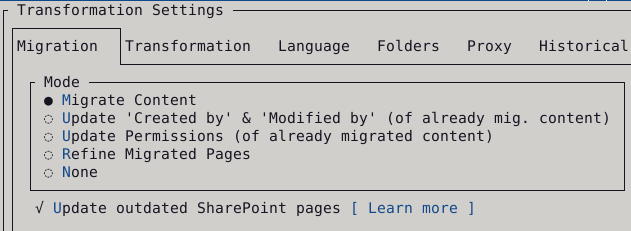
Note: Screenshot of WikiTraccs version 1.17.2; might look different in a recent version.
Mode “Migrate Content”
This mode selects content migration.
Content will be migrated from Confluence to SharePoint. This is probably what you would expect from a migration tool.
You’ll always use this mode first.
WikiTraccs downloads content (pages, attachments, …) from Confluence, transforms it to something SharePoint can understand, and creates corresponding SharePoint content (modern pages, files, …).
Mode “Update ‘Created by’ & ‘Modified by’ (of already migrated content)”
This mode can be used to update the Author and Editor metadata of SharePoint pages.
Background
Confluence pages have an author and an editor. The author created the page and the editor last edited the page. SharePoint pages also have an author and editor.
WikiTraccs can migrate this metadata as well so that the created SharePoint pages have the same author and editor as in Confluence. To be able to do that, WikiTraccs needs a mapping from Confluence user accounts to Entra ID user accounts.
The user mapping is done in the Confluence Users and Groups Mappings list in the WikiTraccs site. Have a look here on how to configure this mapping: Mapping Confluence users and groups to SharePoint. If Confluence accounts and Entra ID account have the same email addresss WikiTraccs might be able to prepopulate the mapping. Otherwise that is a manual task. Using PnP.PowerShell to automate this is recommended if the number of users is high.
What does the update mode do?
Assume that the user mapping list did not yet contain all user mappings when migrating pages (using mode Migrate Content).
After migrating pages, you’ll end up with SharePoint pages having the migration account as author and editor. That’s because WikiTraccs doesn’t know about the corresponding Entra ID account.
But that’s ok. Actually, that is how it’s supposed to work:
- You migrate content from Confluence to SharePoint
- During the migration, WikiTraccs adds all Confluence users it encounters to the mapping list
- You configure the user mapping
- You use the update mode to update the author and editor of existing SharePoint pages according to the mapping
So, you first run the migration in Migrate Content mode. Then, after configuring the mapping, you run the migration again, in Update ‘Created by’ & ‘Modified by’ mode.
Note
In this mode no content will be migrated from Confluence to SharePoint. This mode is just for updating the author and editor of SharePoint pages.Mode “Update Permissions (of already migrated content)”
This mode is for applying page restrictions from Confluence to already migrated SharePoint pages.
This blog post has all the details about migrating permissions (and also why you should avoid doing it): Mapping principals and migrating permissions
This mode is two-phased like the Update ‘Created by’ & ‘Modified by’ mode:
- You migrate content from Confluence to SharePoint
- During the migration, WikiTraccs adds all Confluence users it encounters to the mapping list, plus it stores information about all restrictions in the Confluence Permission Snapshots library in the WikiTraccs site
- You configure the user and group mapping
- You use the update mode to update SharePoint page permissions according to the mapping
Please refer to the blog post linked above, it has all the details.
Note
In this mode no content will be migrated from Confluence to SharePoint. This mode is just for updating the permissions of SharePoint pages. However, WikiTraccs will reach out to Confluence if (for whatever reason) a permission snapshot cannot be found in the Confluence Permission Snapshots library in the WikiTraccs site.Important
The permissions WikiTraccs applies to already migrated SharePoint pages is based on permission snapshots taken at page migration time. Those snapshots are stored in the Confluence Permission Snapshots library in the WikiTraccs site.
That means that any updates to page restrictions in Confluence will not be reflected in the permission update mode run.
If you want WikiTraccs to update a permission snapshot, you need to delete either the SharePoint page and migrate it again, or delete the permission snapshot from the Confluence Permission Snapshots library. WikiTraccs will then reach out to Confluence to get the latest page restrictions and recreate the permission snapshot.
Mode “Verify page contents (of already migrated pages)”
Currently, you won’t need this mode. It is kind of “for future use”.
If you want more details, please refer to the release notes of WikiTraccs v1.12.5, section Verification Mode.
Migrate blog posts
Choose whether to migrate blog posts or not.
Choose whether to migrate footer comments or not.
Download external images
Choose whether to download external images or not.
Confluence pages can contain images from external sources. Those images are not in the page attachments, but are retrieved from an external source when opening the page in Confluence.
SharePoint Online doesn’t allow adding images from external non-Microsoft sources. All images that you link to have to be a file in SharePoint, or a related Microsoft-owned service. The reasoning behind this decision is probably user privacy. External images can be used to track user behavior.
WikiTraccs can download external images and “convert” them to SharePoint page attachments, so the images can be shown in SharePoint.
One possible caveat is that - especially older - Confluence pages might link to images that don’t exist anymore. WikiTraccs will still try to download them - which can take time, if the external source is responding very slowly.
If downloading external images is slowing down your migration you can use this setting to toggle it off.
1 - Gray Settings
This article describes the Gray Settings group in WikiTraccs.GUI: what a gray setting is, and which settings live in that group.
You can find the Gray Settings group in the WikiTraccs Transformation Settings dialog, on the Migration tab, below a label that reads Gray Settings.
What is a “Gray Setting”?
A gray setting is a setting that activates behavior WikiTraccs cannot fully guarantee will keep working over time. The behavior depends on a mechanism that is not officially documented as supported by Microsoft or Atlassian. It works today, but a future change to SharePoint, Microsoft 365, Confluence, or the underlying editors could break it.
Current Gray Settings
Migrate whiteboards as image [Cloud]
Confluence Cloud whiteboards are migrated as a static image embedded in the SharePoint page. The image is generated by WikiTraccs by interacting with Confluence in an automated browser session.
This is gray because the export relies on automated clicking through the Confluence Cloud whiteboard UI rather than on a stable public API. Any change Atlassian makes to that UI can break the automation.
For details, see Migrating Confluence Cloud Whiteboards.
Migrate whiteboards to draw.io file [Cloud, best effort]
Confluence Cloud whiteboards are migrated to a draw.io diagram file that is added to the SharePoint page as a page attachment, preserving the underlying shapes and connectors as far as practical. The file is not editable inside SharePoint, but it can be downloaded and edited in an external draw.io editor.
This is gray because the conversion is best effort. Whiteboards can use shapes, layouts, and content for which no clean draw.io equivalent exists, so the migrated file may need manual cleanup. It is also subject to the same Cloud-mechanism caveat as the image export above.
For how to download a draw.io attachment from a SharePoint page and open it in the draw.io editor (app.diagrams.net), see Converting Gliffy and draw.io to SVG. For insights into how Confluence whiteboards work internally, and why a structured draw.io export is non-trivial, see Inside Confluence Whiteboards.
When checked, WikiTraccs preserves table features that the SharePoint Text web part stores correctly but does not always expose as toolbar buttons in the browser-based page editor. As of 2026, this primarily affects nested tables: a <table> inside a table cell is kept in place rather than being de-nested into a separate area below.
This is gray because, although SharePoint stores and renders the resulting tables, end users cannot create the same structures by clicking buttons in the editor toolbar. A future change to the editor could in theory remove or alter how such tables are handled. In practice this has been working reliably and is on by default.
For background and history, see Making SharePoint Tables Look Pretty. For details on how nested tables are handled - what stays nested and what gets denested - see Nested Tables From Confluence to SharePoint.
2 - Misc Settings
This article provides information about the misc settings in WikiTraccs.GUI.
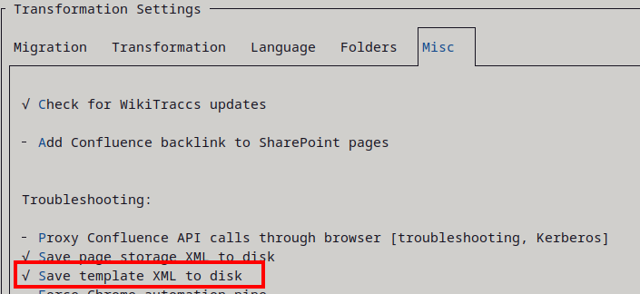
You can find the following settings in the WikiTraccs Transformation Settings dialog, under the Misc tab.
Check for WikiTraccs updates
WikiTraccs can check if new releases are avaible. It does so by reaching out to GitHub to read the list of WikiTraccs releases.
If new releases are found, their version numbers (both latest published and pre-release) will be shown at the top of the blue WikiTraccs window.
WikiTraccs will not automatically download or install an update. You have to do that manually.
You should leave that checked, as new versions often improve the transformation for existing or new macros.
Add Confluence backlink to SharePoint pages
This adds a link to the original Confluence page to the end of each migrated page. This is mainly for testing, to quickly jump back from SharePoint to Confluence to have a look at the original page.
You probably won’t need that setting.
Proxy Confluence API calls through browser
Normally, once authenticated, WikiTraccs talks to Confluence directly. There were cases, though, where this direct communication was disallowed due to Kerberos configuration. In the affected environments, only the browser was allowed to talk to Confluence.
This setting was introduced to quickly work around that.
What this setting does, when starting a migration run:
- WikiTraccs opens a brower under its control
- You need to authenticate to Confluence in this browser
- WikiTraccs injects a piece of proxy JavaScript into the browser
- WikiTraccs will issue all requests to Confluence to the browser proxy script, which forwards the request to Confluence and returns the result back to WikiTraccs
With this setting, from Confluence’s point of view, all requests originate in the browser.
Note that this will make the migration process slower, as requests to Confluence will be issued in a serial manner, wheras WikiTraccs otherwise would issue parallel requests. The browser will be a bottleneck.
You probably won’t need that setting.
Save page storage XML to disk
This setting tells WikiTraccs to store the Confluence Storage Format for every page to disk.
This setting is mainly for troubleshooting purposes and you probably won’t need it.
Save template XML to disk
This setting tells WikiTraccs to store the template XML file for every SharePoint page to disk.
This setting is mainly for troubleshooting purposes and you probably won’t need it.
Template files will be stored in the attachment registry. The location of the attachment registry is configured via Settings > Folders > Attachment Registry Folder Path.
For example, given an attachment registry path of D:\attachments, the template files for a page with ID 123456789 might be stored in the following location:
D:\attachments\USERKEY\CONFLUENCEBASEADDRESS\Attachments\123456789__page/pnp-123456789-wikitraccs-attachments-template.xml (attachments template)D:\attachments\USERKEY\CONFLUENCEBASEADDRESS\Attachments\123456789__page/pnp-123456789-wikitraccs-page-template.xml (page template)
Note that the filename starts with pnp- and contains the page ID.
Normally WikiTraccs checks connectivity to crucial endpoints on each start of a migration run. This ensures that you can be informed of missing prerequisites early, before running into issues during the migration.
Checking connections takes a bit of time on each migration start, so you might decide that everything is ok, will stay ok, and that the connectivity checks can be skipped. You can use this setting to skip the connection checks.
You can also skip the connection checks when troubleshooting connectivity issues and want to jump faster to the migration run, to diagnose in that context.
Force show all automated browser windows / Force hide most automated browser windows
WikiTraccs will open a real browser window (under its control) to perform certain tasks. Among those tasks are:
And the list grows.
WikiTraccs decides which of those browser windows to show, and which to hide.
Using the “Force […] automated browser windows” settings, you can control how many of those browser windows you want to see.
If you want to show all browser windows - for troubleshooting purposes, or out of curiosity - check Force show all automated browser windows.
If you want to hide most browser windows - to reduce visual clutter - check Force hide most automated browser windows. This setting will still leave some browser windows visible, for example the browser window for interactive authentication, as hiding this would make no sense.
Restart WikiTraccs for changes to those settings to take full effect.
Skip table size optimization
Use this setting to disable browser-based table size optimization.
Starting with release v1.30, WikiTraccs opens a browser window for each table it transforms from Confluence to SharePoint, to learn about the size of each table column. Read more about that here: Table Size Optimization.
Note that disabling this setting should still produce tables that look good in SharePoint. Table size optimization is optional. One immediate difference you might see is that narrow Confluence tables will be much wider in SharePoint. It is to get rid of such quirks that the table size optimization has been introduced for.