Misc Settings
You can find the following settings in the WikiTraccs Transformation Settings dialog, under the Misc tab.
Check for WikiTraccs updates
WikiTraccs can check if new releases are avaible. It does so by reaching out to GitHub to read the list of WikiTraccs releases.
If new releases are found, their version numbers (both latest published and pre-release) will be shown at the top of the blue WikiTraccs window.
WikiTraccs will not automatically download or install an update. You have to do that manually.
You should leave that checked, as new versions often improve the transformation for existing or new macros.
Add Confluence backlink to SharePoint pages
This adds a link to the original Confluence page to the end of each migrated page. This is mainly for testing, to quickly jump back from SharePoint to Confluence to have a look at the original page.
You probably won’t need that setting.
Proxy Confluence API calls through browser
Normally, once authenticated, WikiTraccs talks to Confluence directly. There were cases, though, where this direct communication was disallowed due to Kerberos configuration. In the affected environments, only the browser was allowed to talk to Confluence.
This setting was introduced to quickly work around that.
What this setting does, when starting a migration run:
- WikiTraccs opens a brower under its control
- You need to authenticate to Confluence in this browser
- WikiTraccs injects a piece of proxy JavaScript into the browser
- WikiTraccs will issue all requests to Confluence to the browser proxy script, which forwards the request to Confluence and returns the result back to WikiTraccs
With this setting, from Confluence’s point of view, all requests originate in the browser.
Note that this will make the migration process slower, as requests to Confluence will be issued in a serial manner, wheras WikiTraccs otherwise would issue parallel requests. The browser will be a bottleneck.
You probably won’t need that setting.
Save page storage XML to disk
This setting tells WikiTraccs to store the Confluence Storage Format for every page to disk.
This setting is mainly for troubleshooting purposes and you probably won’t need it.
Save template XML to disk
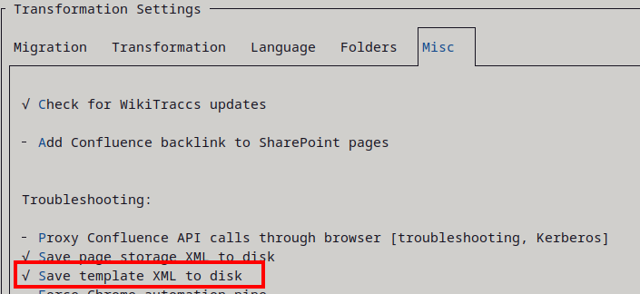
This setting tells WikiTraccs to store the template XML file for every SharePoint page to disk.
This setting is mainly for troubleshooting purposes and you probably won’t need it.
Template files will be stored in the attachment registry. The location of the attachment registry is configured via Settings > Folders > Attachment Registry Folder Path.
For example, given an attachment registry path of D:\attachments, the template files for a page with ID 123456789 might be stored in the following location:
D:\attachments\USERKEY\CONFLUENCEBASEADDRESS\Attachments\123456789__page/pnp-123456789-wikitraccs-attachments-template.xml(attachments template)D:\attachments\USERKEY\CONFLUENCEBASEADDRESS\Attachments\123456789__page/pnp-123456789-wikitraccs-page-template.xml(page template)
Note that the filename starts with pnp- and contains the page ID.
Skip connection checks when starting transformation
Normally WikiTraccs checks connectivity to crucial endpoints on each start of a migration run. This ensures that you can be informed of missing prerequisites early, before running into issues during the migration.
Checking connections takes a bit of time on each migration start, so you might decide that everything is ok, will stay ok, and that the connectivity checks can be skipped. You can use this setting to skip the connection checks.
You can also skip the connection checks when troubleshooting connectivity issues and want to jump faster to the migration run, to diagnose in that context.
Force show all automated browser windows / Force hide most automated browser windows
WikiTraccs will open a real browser window (under its control) to perform certain tasks. Among those tasks are:
- opening Confluence for you to log in (with interactive authentication)
- exporting whiteboards in Confluence Cloud (more info: Migrating Confluence Cloud Whiteboard)
- proxying requests to Confluence if the “Proxy Confluence API calls through browser” setting is checked (more info: Kerberos)
- measuring table sizes (more info: Table Size Optimization)
- creating draw.io preview images (more info: WikiTraccs Creates Draw.io Preview Images)
And the list grows.
WikiTraccs decides which of those browser windows to show, and which to hide.
Using the “Force […] automated browser windows” settings, you can control how many of those browser windows you want to see.
If you want to show all browser windows - for troubleshooting purposes, or out of curiosity - check Force show all automated browser windows.
If you want to hide most browser windows - to reduce visual clutter - check Force hide most automated browser windows. This setting will still leave some browser windows visible, for example the browser window for interactive authentication, as hiding this would make no sense.
Restart WikiTraccs for changes to those settings to take full effect.
Skip table size optimization
Use this setting to disable browser-based table size optimization.
Starting with release v1.30, WikiTraccs opens a browser window for each table it transforms from Confluence to SharePoint, to learn about the size of each table column. Read more about that here: Table Size Optimization.
Note that disabling this setting should still produce tables that look good in SharePoint. Table size optimization is optional. One immediate difference you might see is that narrow Confluence tables will be much wider in SharePoint. It is to get rid of such quirks that the table size optimization has been introduced for.