This is the multi-page printable view of this section. Click here to print.
WikiPakk Topics
1 - Viewing the WikiPakk License Key
You may look up your current WikiPakk license key where you put it in the first place, or you use the following shortcut.
In the WikiPakk page tree panel, click the question mark link button:
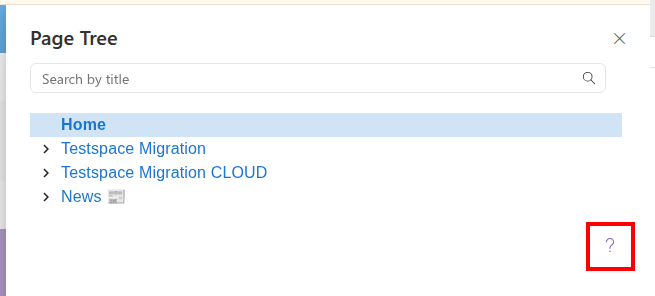
A dialog opens.
Click License Key Refresh to expand it:
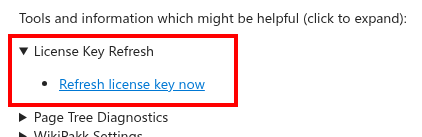
Click Refresh license key now.
This shows your current license key:
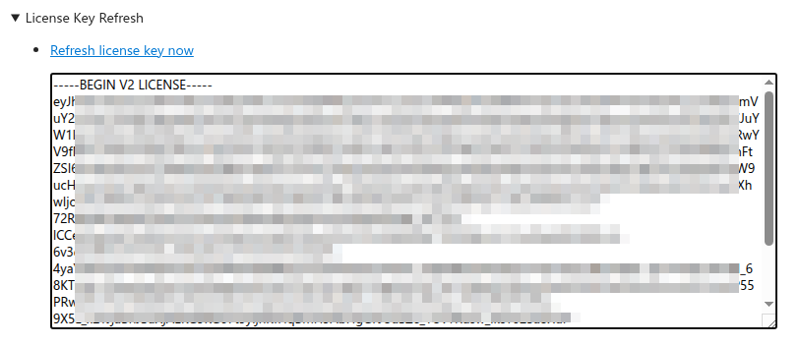
Note that this does only work for valid license keys.
2 - Guest Users Cannot See the Page Tree
If guest users cannot see the WikiPakk page tree, the cause is often missing SharePoint permissions outside the actual content site.
For affected guests, the breadcrumb and the page tree panel are not shown at all, while existing WikiPakk web parts on a page display an error instead:

In practice, guest users usually need read access to the SharePoint tenant app catalog site and (if set up) to the site where WikiPakk license information and settings are stored.
Why this happens
Guest users usually do not have access to the following by default:
- the SharePoint Tenant App Catalog
- the WikiPakk Config Site or another site that stores the WikiPakk license and WikiPakk settings
If guests can open the SharePoint site itself, but cannot load the WikiPakk assets or read the license file or settings, the page tree may be missing and web parts may show errors.
What guest users need access to
To make WikiPakk work for guest users, check these locations:
- Tenant App Catalog site
- Guests need read access to the tenant app catalog site, where the app package and assets are stored.
- WikiPakk Config Site / license and settings site
- If you use a dedicated site for the WikiPakk license and settings, guests need read access there as well. See WikiPakk Licensing for how the license is stored, and Use a Configuration Site for how to designate such a site.
How to grant the required access
The SharePoint setup is slightly awkward because the Everyone claim may first need to be enabled before you can assign permissions broadly enough for guests.
1. Temporarily enable the Everyone claim
In SharePoint Online, you may need to temporarily enable the Everyone claim so that permissions can be assigned to guest users.
Use PowerShell against your tenant:
PnP PowerShell Note
The exactConnect-PnPOnline syntax can vary depending on whether you use PnP PowerShell 1, 2, or 3. Adjust the login parameters as needed for the version you use.# replace the COMPANY placeholder with the value of your tenant
Connect-PnPOnline -Url https://COMPANY.sharepoint.com -Interactive
Set-PnPTenant -ShowEveryoneClaim $true
2. Grant read access on the tenant app catalog
Open the tenant app catalog. The following URL is just a sample and will look different for your client:
https://COMPANY.sharepoint.com/sites/appcatalog/AppCatalog/Forms/AllItems.aspx
Then grant Read permissions where needed:
- the WikiPakk app entry in the app catalog
- if required in your tenant, the app catalog site itself
Use Share, enter Everyone, assign Read, and disable the email invitation.
Additional note for WikiPakk licensing and settings
If WikiPakk reads its license and settings from a dedicated SharePoint site, guests also need read access to that site.
A common real-world setup is:
- read access on the tenant app catalog site
- read access on the WikiPakk Config Site
If the Everyone claim is available, assigning read access there is often what makes guest access work.
Hint
If sharing the tenant app catalog site with guest users does not work, check whether external sharing is enabled first for that site. In some SharePoint Online environments, guest access cannot be granted before the app catalog site’s external sharing settings allow it. If needed, ask an admin to enable guest sharing temporarily, then grant the required Read permissions.Disable the Everyone claim again
After permissions have been granted, disable the claim again:
# replace the COMPANY placeholder with the value of your tenant
Connect-PnPOnline -Url https://COMPANY.sharepoint.com -Interactive
Set-PnPTenant -ShowEveryoneClaim $false
Verify the result
After granting access, ask a guest user to reload the site and test the page tree again.
If the guest had already opened the site earlier, it can also help to:
- clear the browser cache
- sign out and back in again
- test once more; if in doubt, open the app catalog site directly to make sure access is granted
If the guest user still cannot see the tree after the above permissions were granted, double-check both the tenant app catalog access and the license/settings site access.
3 - Scripting the Page Hierarchy
WikiPakk shows SharePoint pages in a tree-like manner; pages have a parent-child relationship.
If you create SharePoint modern pages “by script” (for example via PowerShell or Power Automate Flow), you might want to set their hierarchical relationship as well.
This article explains where WikiPakk gets its hierarchy information from, so you can potentially create it in an automated fashion.
Where Does WikiPakk Get Its Hierarchy Information From?
There are two hierarchy sources for WikiPakk:
- the Site Pages library
- the WikiTraccsPageTree hierarchy list, which is hidden
Hierarchy information from the WikiTraccsPageTree list overrides hierarchy information from the Site Pages library.
Site Pages Library
The first (of two) hierarchy sources for WikiPakk is the Site Pages library. WikiPakk looks for specific columns and - if it finds those - uses hierarchy information it finds there.
Migration Note
Did you migrate pages from Confluence to a SharePoint site using WikiTraccs? Then all columns described here are present in all migration target sites. Plus all hierarchy-related metadata.WikiTraccs-Owned Columns
Do not create those columns yourself. Rather use WikiTraccs to create the columns for you by starting a (dummy) migration to the target site. WikiTraccs prepares the site and makes sure everything is set up correctly.| Display Name | Internal Name | Type | Notes | Sample Value |
|---|---|---|---|---|
| Confluence: Title (WikiTraccs) | WT_In_CfTitle | Single line of text | Original Confluence page title; WikiPakk does not use this value, unless the SharePoint-native Title field is empty | Demo Page |
| Confluence: Id (WikiTraccs) | WT_In_CfContentId | Single line of text | Confluence page ID | 118587460 |
| Confluence: Parent Id (WikiTraccs) | WT_In_CfParentId | Single line of text | ID of parent page (0 for the top-most pages) | 118587459 |
| Confluence: Sibling Order (WikiTraccs) | WT_In_CfSiblingOrder | Number | Order in the page tree, lower numbers come first | 1 |
| Confluence: Space Key (WikiTraccs) | WT_In_CfSpaceKey | Single line of text | Confluence space key. A migrated root page must have a value in this field. WikiPakk compares this value with the page file name to help identify page copies. WikiPakk does not use this value to link a page to its parent. | SPCKEY |
| Confluence: Created (WikiTraccs) | WT_In_CfCreated | Date and Time | Creation date of the original Confluence page; WikiPakk compares it with the SharePoint Created date to tell original migrated pages from copies. For script-created pages, set this to the same value as the page’s Created date; WikiPakk then always treats the page as an original page, even when the page was published long after it was created | 2023-05-11T09:30:00Z |
| WT: Transformation Time (WikiTraccs) | WT_Out_CfTransformationTime | Date and Time | Date and time when WikiTraccs migrated the page; also used to tell original migrated pages from copies; leave empty for script-created pages | 2025-10-04T14:12:00Z |
When those columns are present, WikiPakk uses the hierarchy information stored in those columns. Note: The values might be overridden by the second hierarchy source.
When even one of those columns is not present, WikiPakk treats the whole site as not migrated: it ignores the hierarchy information in the Site Pages library for all pages of the site and only uses the second hierarchy source. So keep all columns of this table, even where a single page leaves their values empty.
This page describes which values to fill to build a hierarchy. For the reverse angle (which columns must survive a post-migration cleanup), see Removing WikiTraccs Columns from the Site Pages Library.
Note
WikiPakk never modifies values in these Site Pages library fields. When users change the page hierarchy, the updated hierarchy information is stored exclusively in the Hierarchy List (see section below).
Why doesn’t WikiPakk use the Site Pages library fields? Modifying page metadata can cause a number of unintended side effects, including changed modification dates, check-in/check-out conflicts (exacerbated by co-authoring), triggering of attached workflows, and permissions issues related to page authoring. Keep these side effects in mind when designing workflows that modify page metadata.
Hierarchy List
The second (of two) hierarchy sources for WikiPakk is the WikiTraccsPageTree hierarchy list.
Note
The list is called WikiTraccsPageTree for historical reasons.The hierarchy list is created automatically in a SharePoint site when the WikiPakk app is added to the site. Removing the WikiPakk app from a site does not delete the list, so you can re-add the app and hierarchy data will still be there.
Every site WikiPakk has been added to will contain the hierarchy list.
The list is hidden and thus not visible in the Site Contents view. But the list can be accessed by using its URL Lists/WikiTraccsPageTree, for example https://COMPANY.sharepoint.com/sites/SITENAME/Lists/WikiTraccsPageTree.
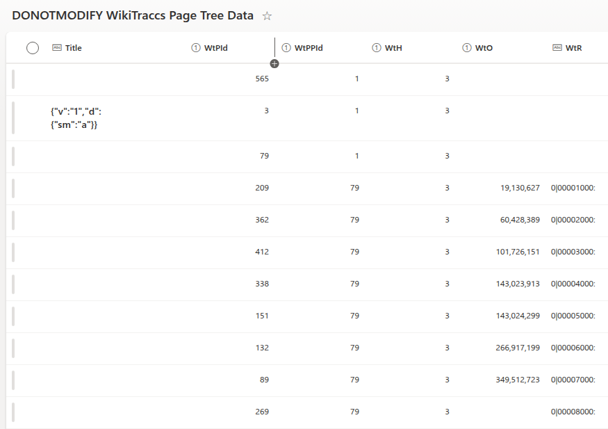
| Display Name | Internal Name | Type | Notes | Sample Value |
|---|---|---|---|---|
| Title | Title | Single line of text | Settings in internal JSON format, e.g. forced alphabetic order for children; leave empty | |
| WtPId | WtPId | Number | Item ID of SharePoint page (ID column in Site Pages library) | 123 |
| WtPPId | WtPPId | Number | Item ID of parent SharePoint page (0 for root pages) (ID column in Site Pages library) | 0 |
| WtO | WtO | Number | Internal use; leave empty | |
| WtH | WtH | Number | Internal hierarchy source; must be 3 | 3 |
| WtR | WtR | Single line of text | Rank of items in internal format; leave empty |
The list is initially empty. When users move tree nodes around, either in the page tree panel or the WikiPakk page tree editor web part, items will be added or (if already existing) modified.
Hierarchy items in the hierarchy list override hierarchy information from the Site Pages library.
Note: If you screw up the hierarchy, the tree is capable of crazy things, like showing duplicate subtrees. Please take care.
Sample Script
The Wiki Transformation Project library contains a PowerShell script that manipulates the hierarchy both in the Site Pages library and in the hierarchy list: CreateHierarchy.ps1. This can serve as sample.
4 - Removing WikiTraccs Columns from the Site Pages Library
WikiTraccs adds around 34 WT_ columns to the Site Pages library of every migration target site. After a completed migration you might want to remove columns you no longer need. This page describes which columns WikiPakk still needs, how it uses them, what happens when they are missing, and in which order to remove the rest.
Note
This page only matters for sites that were a migration target of WikiTraccs. If you use WikiPakk without a WikiTraccs migration, your Site Pages library has none of these columns, and there is nothing to remove.Only after the final cutover
WikiTraccs itself needs its columns and its content type for delta migrations, link fixing, page refinement, and repairs. Remove them only when you are sure that WikiTraccs will not run against the site again. The removal permanently deletes migration metadata.Cleanup script keep list
Older versions of the community cleanup script CleanSitePagesLibrary.ps1 keep only five columns and would deleteWT_In_CfCreated and WT_Out_CfTransformationTime. That deletion disables the WikiPakk page tree for the whole site. Before running any cleanup script, verify its keep list contains all seven columns from the table below.The Seven Columns WikiPakk Needs
WikiPakk reads the migrated page hierarchy from these Site Pages library columns:
| Internal Name | Type | How WikiPakk uses it | Effect of an empty value |
|---|---|---|---|
| WT_In_CfContentId | Single line of text | Identifies a migrated page and connects children to it; separates migrated from vanilla pages | Page loses its migrated identity and its children cannot link to it |
| WT_In_CfParentId | Single line of text | The parent edge of the migrated hierarchy; 0 marks a root page | Page is not placed correctly in the tree |
| WT_In_CfTitle | Single line of text | Search by the original Confluence title; also a source for the shown page label | Title search misses the page; the native Title or filename still supplies a label |
| WT_In_CfSiblingOrder | Number | Order of pages below the same parent | The migrated order is lost for that page |
| WT_In_CfSpaceKey | Single line of text | Admits migrated root pages; helps identify page copies via the filename | A migrated root page with an empty space key vanishes from the WikiPakk page tree, together with the tree branch below it |
| WT_In_CfCreated | Date and Time | Distinguishes original migrated pages from copies (compared with the SharePoint Created date) | Copy detection loses a signal and can misclassify the page |
| WT_Out_CfTransformationTime | Date and Time | Another original-versus-copy signal, including for pages without a FirstPublishedDate | Copy detection loses a signal and can misclassify the page |
Two consequences follow from how WikiPakk checks these columns:
One missing column disables the migrated hierarchy for the whole site. WikiPakk checks that all seven internal names exist in the Site Pages library. When even one is missing, WikiPakk ignores the hierarchy information in the Site Pages library for all pages of the site and shows the library’s pages as a flat list instead. Pages that carry the WikiTraccs content type do not even appear in that flat list. So migrated pages are gone from the WikiPakk page tree entirely. The pages themselves still exist in SharePoint and open via direct links, search, and the Site Pages library; it is the WikiPakk navigation that loses them. Only manual moves stored in the hidden hierarchy list still apply. Never delete a subset of the seven.
Values matter too. WikiPakk checks only that the seven columns exist, but the per-page behavior in the table’s last column depends on the stored values. Keep the values; do not blank them. The check compares exact internal names and does not check column types, so recreating a deleted column as a lookalike is risky: a wrong internal name fails the check, and a wrong type passes it and then breaks queries. Keeping the original columns is safer than recreating them.
For the reverse angle (which values to fill to build a hierarchy for script-created pages), see Scripting the Page Hierarchy.
The Columns That Can Be Removed
Every other WT_ column of the Site Pages library, meaning every WT_ column that is not in the seven-column table above, is not needed by WikiPakk (verified for WikiPakk 2.17.0) and can be removed.
Notes:
WT_In_CfModifiedis included in the WikiPakk diagnostics export when present. Removing it only reduces that support export by one value; navigation is unaffected.- “Not needed by WikiPakk” does not mean “not needed by anyone”. Your own list views, Power Automate flows, scripts, reports, or audit requirements may use these columns. Inventory such consumers before deleting.
The WikiTraccs Content Type
WikiTraccs assigns the content type Site Page (transformed by WikiTraccs) to every migrated page.
Who needs it:
- WikiTraccs needs it. Target site preparation checks for it, and stored-page handling, link fixing, and refinement classify pages by it. Keep it as long as WikiTraccs might run against the site again.
- WikiPakk does not need it in normal operation. With all seven columns present, WikiPakk identifies migrated pages by their columns and ignores content types. The content type name only plays a role in the degraded mode described above: when the seven-column check fails, pages with this exact content type name are excluded from the flat list that WikiPakk shows instead of the hierarchy.
| Seven columns | Page content type | Result |
|---|---|---|
| All present | Any | Migrated hierarchy works; the content type is irrelevant to WikiPakk |
| One or more missing | Site Page (transformed by WikiTraccs) | Migrated pages are gone from the WikiPakk page tree |
| One or more missing | Reassigned to the standard Site Page type | Pages appear in WikiPakk’s flat page list, but without their Confluence hierarchy |
Removing the content type (again, only after the final cutover): SharePoint refuses to delete a content type that items still use. Reassign every page to the standard Site Page list content type first, verify the seven column values survived the reassignment, then delete the list content type. If you keep the content type, remove its field links for the columns you delete first; SharePoint refuses to delete a column that a list content type references.
Safe Removal Sequence
- Confirm that no future WikiTraccs run (delta migration, link fixing, refinement, repair) is expected for the site.
- Inventory your own consumers of the columns: list views, flows, scripts, reports. Export column values if you need them as an audit record.
- Pilot the removal on one representative site and validate the page tree, breadcrumb, page order, copied pages, and multilingual pages.
- Optional, when removing the content type: reassign all pages to the standard Site Page list content type and verify the seven column values survived.
- When keeping the content type: remove its field links for the columns you delete.
- Verify the seven internal names from the table above still exist in the Site Pages library.
- Delete the other columns.
- Open the site in a fresh browser session and validate the page tree.
5 - Unavailable Pages
You might see nodes in the tree that say Page unavailable (or inaccessible page in older WikiPakk versions), like here:
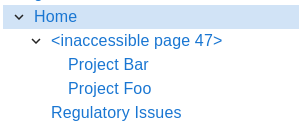
"Inaccessible page" in WikiPakk v2.10.0 and older
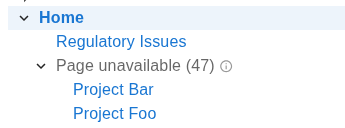
"Page unavailable" in WikiPakk starting with release v2.11.0
Where do those unavailable pages come from?
There are two sources of “unavailable pages”:
- deleted pages, and
- pages that the current user is not allowed to see due to broken permission inheritance on those pages
We’ll look at both cases below.
Deleted Pages
Deleting pages can make tree nodes show the Page unavailable placeholder.
Consider the following page tree:
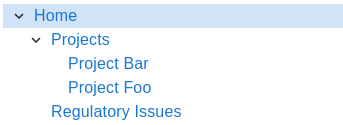
Note the Projects page that has two child pages: Project Bar and Project Foo.
Now we delete the Projects page (that has the SharePoint item ID 47):
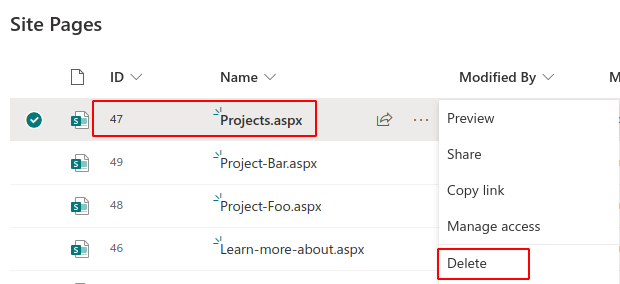
The tree now cannot get information about that page anymore. However, it still knows where the page used to be in the hierarchy of pages.
To maintain the configured hierarchy of pages, the tree shows a placeholder Page unavailable (47) where the page used to be:
The child pages are still being shown at the correct position.
If we restore the Projects page from the recycle bin the tree will again show its title and link to the page:
Note that WikiPakk cannot know if a page has been deleted or if a page is not available due to missing permissions.
Pages with Unique Permissions
Consider the following page tree:
What happens if a user cannot access the Projects page? This happens when the page had its permission hierarchy broken, unique permissions set, and the current user is not allowed to view the page.
For a user without access to the page, the tree will look like this:
Other users might have access, so the page tree will look differently for them.
Note
WikiPakk cannot know if a page is not accessible due to missing permissions, or due to a page having been deleted.SharePoint Works Differently than Confluence
If you know the page tree from Atlassian Confluence, you won’t know this issue of unavailable pages in the page tree.
In Confluence, if you are not permitted to access a page, you also cannot access its child pages.
In Confluence, if a page is deleted, the child pages won’t exist anymore.
Pages work differently in SharePoint.
In SharePoint, when deleting a page, its child pages in the Site Pages library and in the WikiPakk page tree still exist.
In SharePoint, when restricting access to a page, child pages might still be accessible for the current user.
Thus WikiPakk has to cope with a situation where in the midst of the page tree certain pages might be inaccessible.
Those pages will be represented as unavailable page in the page tree.
Handling Unavailable Pages
There are some strategies to handle those pages that are shown as unavailable.
Remove Those Pages via Context Menu
Note: this option is available as of WikiPakk 2.5.1. Learn how to update.
Use the mouse to hover over the unavailable page. Click the three dots to open the context menu. Click Remove from tree.
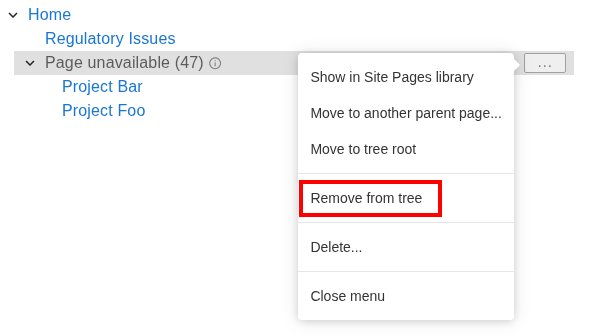
This removes hierarchy information for this page from the WikiPakk hierarchy table.
Children of this page node will remain in the tree and will be moved one level up.
The resulting tree looks like this:

Delete a Subtree of (Unavailable) Pages
Note: this option is available as of WikiPakk 2.11.0. Learn how to update.
If you see multiple pages being unavailable and nested in a subtree, or you just want to clean house, you can delete a whole subtree of pages:
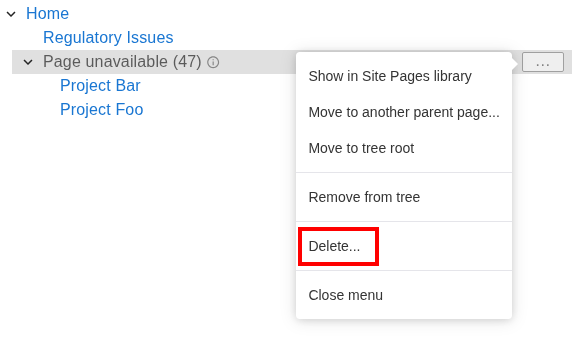
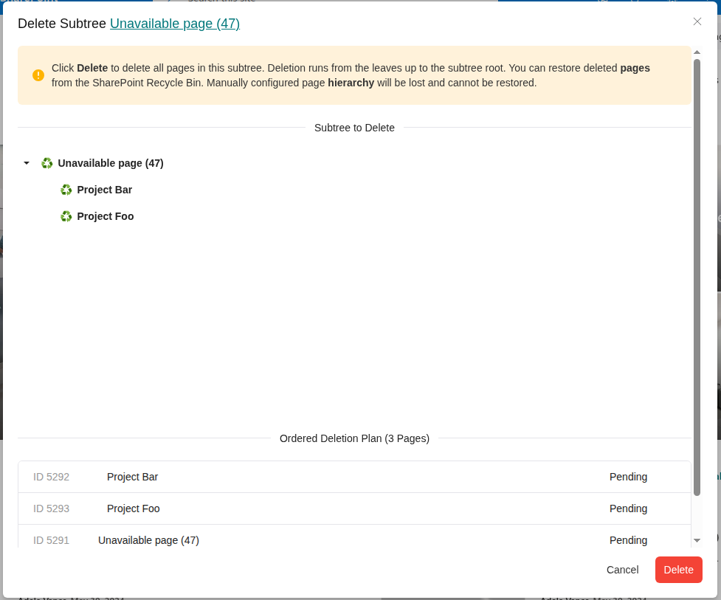
Click Delete… to open the Delete Subtree dialog:
Note
Clicking Delete will delete pages as well. It is different from the Remove from tree option, which will just remove a single unavailable node from the tree.Review the list of pages (both available and unavailable) that will be deleted. Clicking Delete will delete available pages as well as hierarchy information for shown pages.
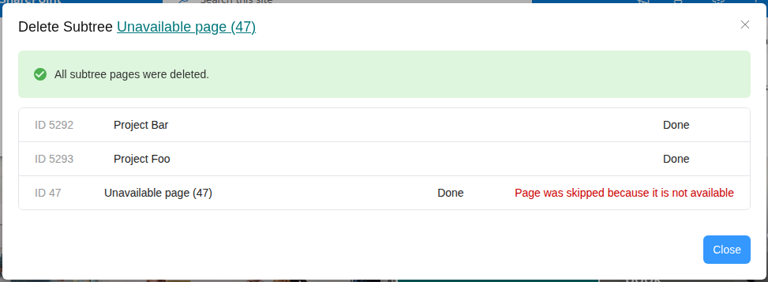
In our sample, clicking Delete deletes the following:
- Page Project Bar, including hierarchy information
- Page Project Foo, including hierarchy information
- Hierarchy information for unavailable page 47; there is no page to delete, as we already did that earlier
Move Unavailable Pages to a Dedicated Node
Use the WikiPakk page tree editor web part to move the unavailable page away:
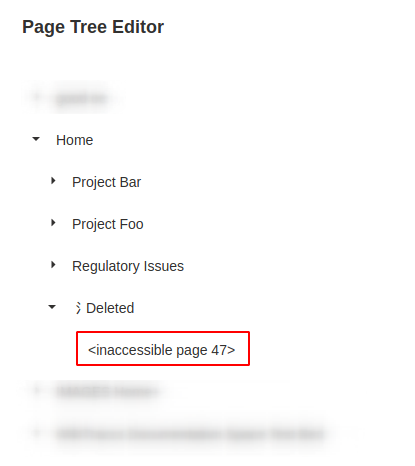
Note: the Deleted node in above image is a dummy page that has been created to serve as parent for unavailable page nodes.
Out of sight, out of mind.
If the unavailable page has child pages, you might want to move those to another parent node. In our sample those are the Project Bar and Project Foo pages, which have been moved to Home.
Note
WikiPakk automatically hides unavailable page nodes if those don’t have any children and are true tree leafs. So, after moving unavailable notes to a dedicated parent, they might disappear, which is the expected behavior.Advanced: Manually Delete Hierarchy Information for Unavailable Pages
You can also make the unavailable pages disappear by manually deleting their hierarchy information from the hierarchy list.
Note
Deleting hierarchy information is what the Remove from tree three-dot menu option does behind the scenes.WikiTraccs stores hierarchy information for pages in a hidden list. This list exists in every site WikiPakk has been added to.
Open WikiPakk’s hidden hierarchy list by appending Lists/WikiTraccsPageTree to the SharePoint site root address, like so: https://contoso.sharepoint.com/sites/pagetreedemo/Lists/WikiTraccsPageTree.
Build this root address for your site and enter it into the browser address bar.
Locate the unavailable page ID in the WtPId column, here 47.
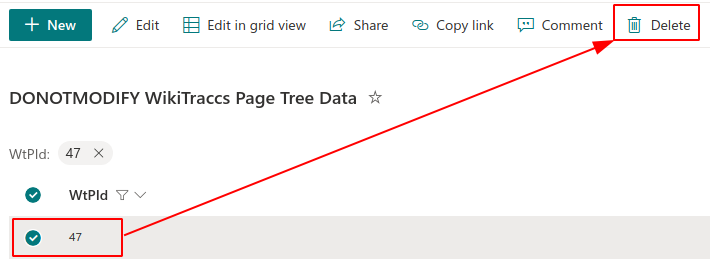
Delete the list item.
The Page unavailable (47) node is now gone from the tree.
Usability Outlook
There are features currently being worked on that will improve handling for deleted pages:
- ✅ done:
manual option to remove unavailable page nodes from the tree via their context menu - detection of deleted pages by looking in the recycle bin - this would allow removing some of the unavailable page nodes automatically
6 - Page Tree Loading Behavior
The WikiPakk page tree loads page information on demand instead of loading the whole hierarchy at once. This keeps the tree fast even on sites with thousands of pages.
This article explains what the loading symbols mean and how the tree behaves on very wide hierarchy levels.
What does the circular arrow symbol mean?
A circular arrow next to a page means: WikiPakk has not yet loaded the entries below that page. At this point the tree does not know whether the page has sub-pages or not.
Clicking the circular arrow loads the entries below that page. Then one of two things happens:
- the page has sub-pages: the tree expands and the symbol changes to the usual chevron
- the page has no sub-pages: the expand symbol disappears; the page is shown as a single entry
A page without any sub-pages shows the same circular arrow until it is loaded, so the symbol is no indicator for the existence of sub-pages.
When does the symbol resolve on its own?
For every page shown in the tree, WikiPakk checks in the background whether that page has sub-pages. On hierarchy levels of typical size this happens automatically, and the circular arrows resolve on their own after a moment: pages with sub-pages get a chevron, single pages lose the expand symbol.
Why does the symbol stay on large sites?
The background check is skipped when one level of the tree is very wide:
- more than 200 pages on the top level
- more than 150 pages on a level further down
On such a wide level, WikiPakk does not check the pages for sub-pages. Every page keeps its circular arrow, and what is below a page is only loaded when you click the arrow.
This is intentional. Checking hundreds of pages for sub-pages would send a large burst of requests to SharePoint on every page load. SharePoint throttles clients that send too many requests in a short time, and once throttling kicks in, all requests are slowed down, making the whole page sluggish. The limits protect against that.
The limits are built into WikiPakk and cannot be changed via configuration.
Recommendation
If the circular arrows get in the way, reduce the number of pages per hierarchy level to below the limits. The background check then runs again, and pages with sub-pages get their chevron automatically.
If your scenario needs such wide levels, send a short description of the use case to [email protected]. This helps to get the topic on the roadmap.
7 - Preventing Hierarchy Changes
Normally, users who can create pages also can change the page hierarchy.
If a user is only Visitor on a site, they cannot create pages and they cannot change the page hierarchy.
The page hierarchy is stored in a hidden SharePoint list. The permissions on this list are usually inherited from the site, as are the permissions of the Site Pages library, where the actual pages are stored.
How can users change the page hierarchy?
Users can change the page hierarchy in explicit ways and without noticing it.
Here’s what causes changes in the page hierarchy:
- creating new SharePoint pages (this stores the relationship between parent and child page)
- using the three-dot menu in the page tree panel to…
- delete subtrees (deletes hierarchy as well)
- make pages root
- move pages to a different parent
- using the page tree editor web part to move pages around
How to prevent changes to the page hierarchy?
You restrict access to the hidden hierarchy list, which is detected by WikiPakk.
WikiPakk checks, if a user can create items in the hierarchy list. Only if that is possible, the context menu in the page tree panel will be shown.
Here’s how to set unique permissions for the hierarchy list.

Enter the hierarchy list URL (<SITEURL>/Lists/WikiTraccsPageTree) in the browser address bar; press Return
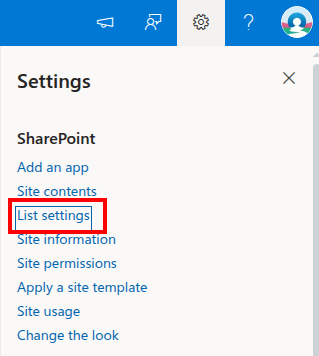
Open the list's settings
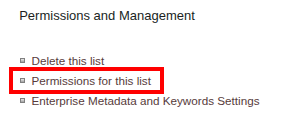
Click Permissions for this list
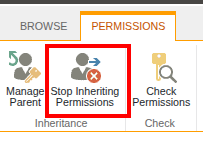
Click Stop Inheriting Permissions
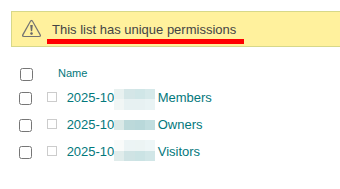
Acknowledge that this list has unique permissions and configure permissions as needed
Permission Note
Configuring unique permissions in SharePoint is not intuitive. When changing the default groups for Visitors, Members, and Owners, you’ll also change the site’s permissions (as groups exist on the site level). Make sure to test your permission configuration with different user accounts.Caching Note
WikiPakk checks a user’s permissions only once an hour for performance reasons. So it might take an hour for WikiPakk to notice permission changes and to properly show or hide the three-dot menu.
Alternatively, you can clear the browser cache to force WikiPakk to check immediately on the next page reload.
Usability Note
When users have no permission to change the hierarchy, they’ll notice that at several places:
- the three-dot menu for tree nodes will not be shown in the page tree panel, preventing access to most of the hierarchy-changing features
- the Page Tree Editor web part will show a rather blunt access denied error message when moving pages around