1 - Troubleshooting the WikiPakk Page Tree
Troubleshooting steps for the WikiPakk SharePoint page tree and breadcrumb.
This guide helps you troubleshoot the SharePoint page tree and breadcrumb navigation provided by WikiPakk.
Which version of WikiPakk am I using?
Click the Page Tree button to open the page tree panel.
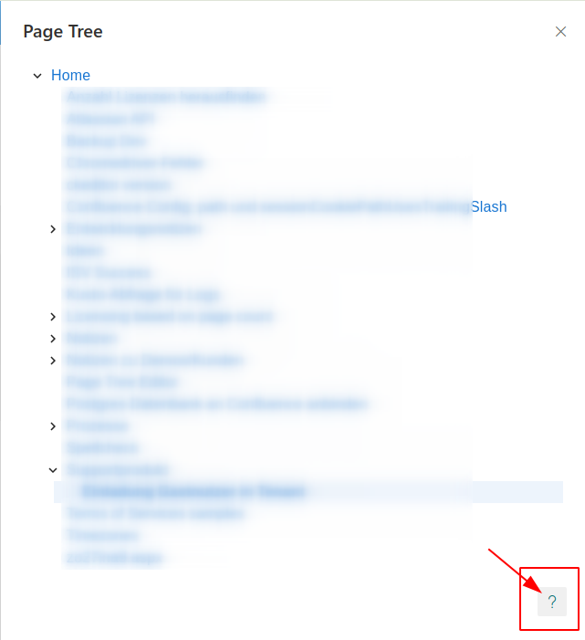
In the panel, scroll down (if necessary) until you see the question mark (?) link.
Click the question mark (?) link to open the About dialog.
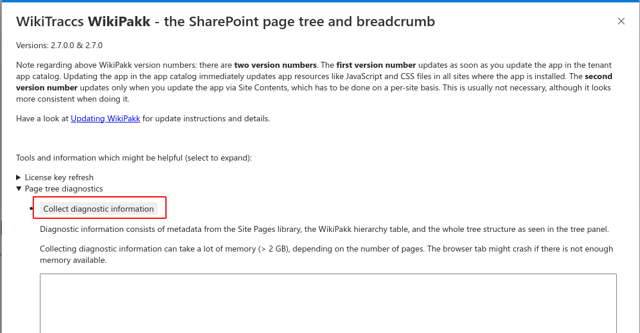
The about dialog shows the version (sample: 2.7.0.0 & 2.7.0).
Diagnosing issues in the page hierarchy
The SharePoint page tree gets hierarchy information from different sources, depending on whether it is showing regular SharePoint modern pages, or pages that have been migrated from Confluence to SharePoint.
For the hierarchy to work there need to be:
- modern SharePoint pages
- a page ID per page
- a parent page ID per page
The page tree might be incomplete if any of those is missing.
Note
WikiPakk tries its best to show a partial page tree and breadcrumb if information is missing, starting at the page that is currently open. Try selecting different pages and check if the page tree changes. This could hint at missing pages and/or metadata.Checking the hierarchy for pages that have been migrated from Confluence to SharePoint
Let’s assume the parent page of a page is missing in the page tree.
First, open the “aggregated-info” progress log files for the Confluence space this page was in and check that all pages have been migrated. If there are pages yet to be migrated, migrate them and check back if the page tree looks good after doing that.
If the issue persists, continue.
To diagnose the issue we first need to find out if the parent page has been migrated yet.
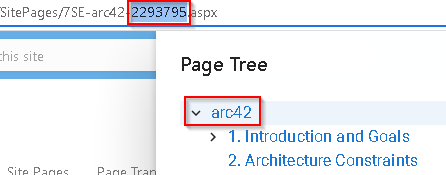
Open the page, whose parent page is missing, here it is arc42:
The Confluence page ID is part of the page URL. Copy this page ID. In the screenshot this is 2293795.
We are now going to look up the parent page ID and parent page.
Open the Site Pages library. Make sure to add the columns Confluence: Id (WikiTraccs) and Confluence: Parent Id (WikiTraccs) to the current view.
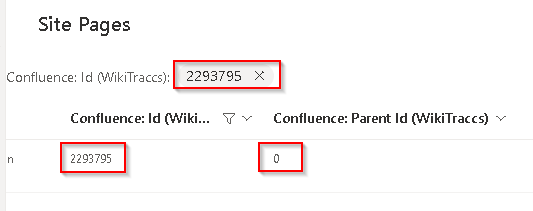
Filter the column Confluence:Id (WikiTraccs) for the page ID, here 2293795:
In the screenshot above the parent page ID is zero (0), which indicates this is a root page that has no parent page. This was the root page of a Confluence space. Note that there can be multiple such root pages per space.
Everything is fine in this case.
But imagine the parent page ID being 123456. If this was the case, do the following: filter the Confluence: Id (WikiTraccs) column for the parent page ID (here: 123456), to find the parent page.
Can no such parent page be found? The page has not yet been migrated and the tree is correctly showing no parent page. In this case, migrate the missing page.
Can the parent page be found? The page tree should display it. There might be an issue with the page tree if the parent page exists, but is not shown in the page tree. In this case, copy the log (see next section on how to do this), and send the log, the page ID, the parent page ID and the progress log files for the space to [email protected] for further diagnosis.
Pages show a circular arrow symbol instead of a chevron
A circular arrow next to a page means the tree has not yet loaded the entries below that page. On sites with very wide hierarchy levels (more than 200 pages on one level) this symbol stays until clicked, because WikiPakk skips the background check for sub-pages on such wide levels.
This is expected behavior, not an error. See Page Tree Loading Behavior for details and recommendations.
Export the page hierarchy for further diagnosis
In the page tree panel, click the question mark to open the About dialog:
In the About dialog, click Page tree diagnostics to expand the section, then click Collect diagnostic information.
Now text should appear in the text box. Copy all this text and send it to support upon request.
The page tree is not visible at all
If the page tree button and breadcrumb are completely missing from a SharePoint site, the WikiPakk application customizer might no longer be registered on that site. This can happen when an admin removes or re-deploys the app, or when the app catalog entry is retracted.
Check if the application customizer is present
You can verify whether the WikiPakk application customizer is active on a site by querying the SharePoint REST API for custom actions.
Build the URL by combining your site URL with the REST API path for user custom actions:
https://COMPANY.sharepoint.com/sites/YOURSITE/_api/Web/UserCustomActions
Replace COMPANY with your SharePoint tenant name, and YOURSITE with the name of the affected site.
Open this URL in the browser while logged in as a site admin. The response is an XML or JSON document listing all custom actions on that site.
Look for the WikiPakk application customizer GUID:
2d767101-dd5b-447d-bc25-03bd6191e469
Search the response for this GUID (use Ctrl+F in the browser). It should appear as a ClientSideComponentId value in one of the custom action entries, with Location set to ClientSideExtension.ApplicationCustomizer.
If the GUID is missing, the WikiPakk application customizer is not registered on this site. To fix this, re-add the WikiPakk app to the site:
- Go to the site’s Site Contents page.
- Check if WikiPakk is listed there. If it is not, add it from the app catalog.
- If it is listed but the custom action is still missing, remove the app and add it again.
After re-adding the app, reload any modern page on the site. The page tree button should appear again.
Note
If the site is connected to a hub site, make sure you are checking the actual site where WikiPakk should be installed, not a different hub-connected site. When navigating via the hub, the browser URL may point to a different site that does not have WikiPakk.Check for permission issues using a WikiPakk web part
If the page tree is not showing up but the application customizer is present, permissions might be the cause. A quick way to check is to add one of the WikiPakk web parts to a page.
- Edit any modern page on the affected site.
- Add a web part and search for WikiPakk. You should see web parts like WikiPakk Page Tree Editor or WikiPakk Children Display.
- Insert one of them and observe the result.
If the web part renders normally, permissions are fine. The issue is likely elsewhere (check the browser console logs as described below).
If the web part shows an error, this points to a permission issue. The most common cause is that the current user does not have access to the tenant app catalog site where WikiPakk assets are hosted. See Guest Users Cannot See the Page Tree for instructions on granting the required access.
If no WikiPakk web parts appear when searching, the WikiPakk app has not been installed on this site or has not been deployed to the tenant app catalog.
How to get and copy the WikiPakk logs from the Browser console
The log can be found in the browser console.
To view and copy the log of the SharePoint page tree and breadcrumb follow these steps:
- open the Chrome browser
- open a modern SharePoint page where the page tree misbehaves
- open the Chrome developer tools: choose the three dot menu in the upper right corner, then More tools, then Developer tools; or simply press the F12 key
- the developer tools panel opens
- choose the Console tab
- enter wikipakk in the search box
- choose the levels drop down
- select all levels, including Verbose
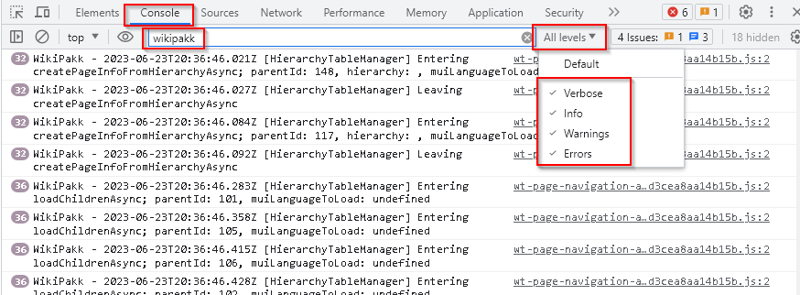
Developert tools, showing log entries of WikiPakk
- reload the page, for example by pressing the F5 key
The console should now show lots of log entries from WikiPakk, like in above screenshot.
When being asked for, copy all those log entries and send them to [email protected].
2 - Troubleshooting WikiPakk License Issues
What if the “Could not find a valid license” message is shown despite having a valid license key in place?
How applying the WikiPakk license is supposed to work
After installing WikiPakk and adding it to a site it will show a red banner with the message Could not find a valid license, which is correct since there is no license, yet.
After purchasing a license for WikiPakk you’ll receive a license key.
The license key needs to be stored in a place in SharePoint where WikiPakk can find it. There are multiple options for storing the license key which are documented in this article: WikiPakk Licensing.
Click the Retry link in the red box and the red box should disappear.
Success
The red box with the note about the missing license should be gone now.Make sure to test with at least one regular user account that for them the red box also disappears to rule out permission-related issues.
Read further if the red box and note do not disappear.
What if WikiPakk cannot find the license?
If some users still see the red box with the Could not find a valid license message then for some reason WikiPakk cannot either find the license in any of the supported places, or cannot refresh the license.
WikiPakk allows to troubleshoot that.
Note
Common causes for WikiPakk having no license are:
- not every user has access to the SharePoint site where the license is stored; grant all users read access
- the license has been stored in just one SharePoint site, but other sites don’t know about the license; using a central site will resolve this issue
- after one license period (a month, a year) expired: WikiPakk cannot contact the licensing server to refresh the license; grant access or refresh manually
We’ll open the browser’s developer tools to access the WikiPakk log messages. The log contains information about each step WikiPakk makes.
Here’s how to access the log via the Chrome browser’s developer tools:
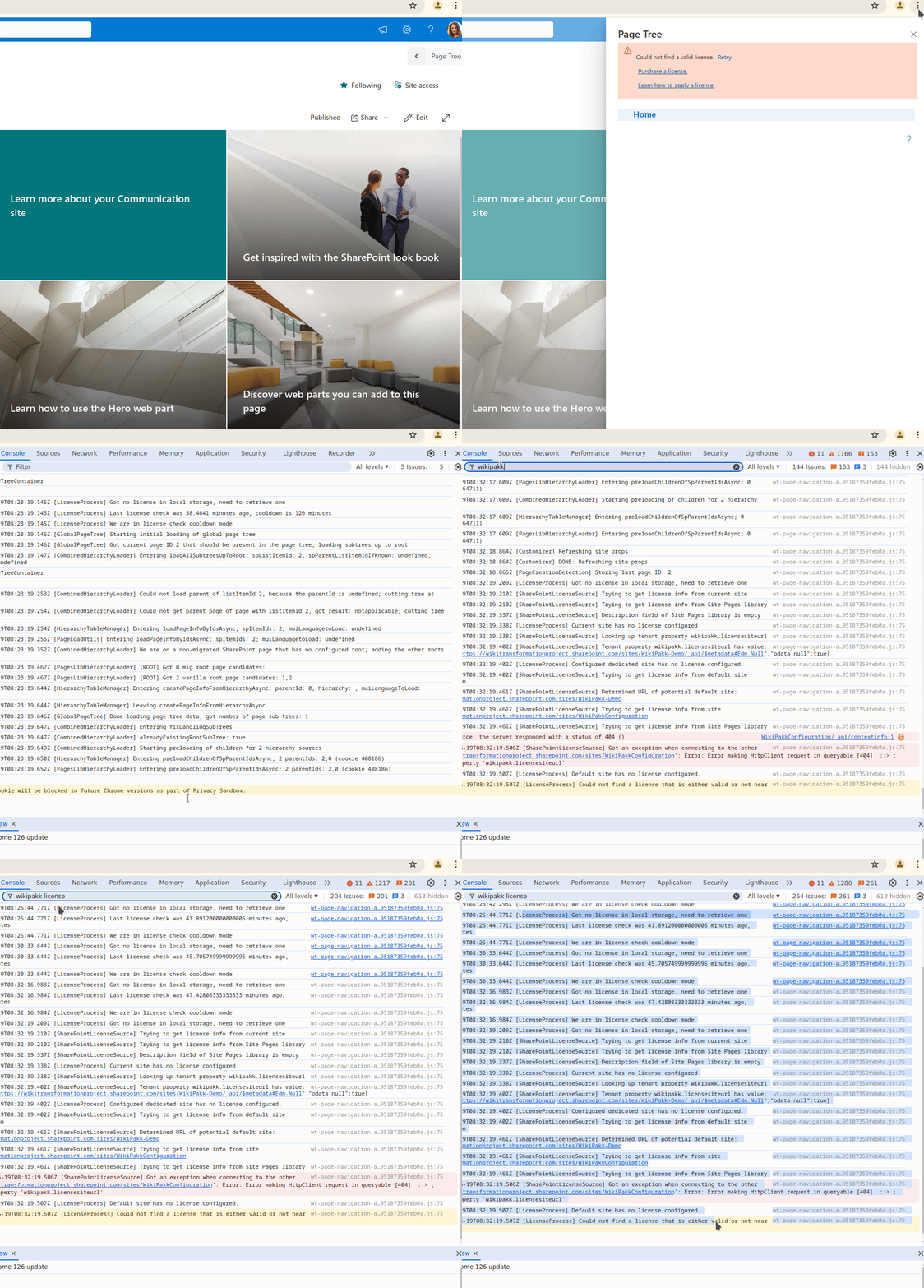
Note: The Edge browser provides a similar way to access the developer tools, although the menu options you have to select differ a bit.
Above animation shows the following:
- in Chrome browser, have a SharePoint site open where WikiPakk is installed
- expand the Page Tree to view the red licensing error
- click the Retry link to check if WikiPakk can refresh the license; it can’t
- open Chrome’s developer tools via Three Dot Menu ⇒ More tools ⇒ Developer Tools
- in the Console section of the developer tools, enter wikipakk license into the search box; WikiPakk licensing-related log messages are shown
- the log messages are selected and can be copied and pasted, e.g. to support emails
Note
Add those log messages to your support request as it provides valuable information and allow to pinpoint issues pretty quickly.What do those log messages mean?
You might be able to figure out what’s wrong on your own. The following sections provide information about commonly encountered log messages.
License found in memory
[LicenseProcess] Using memory-cached license info
There is a cached license available in memory. Reloading the page in the browser clears the memory cache.
Valid license found in local storage
[LicenseProcess] Found license in local storage, good (valid from Wed Jun 19 2024 09:21:15 GMT+0200 (Central European Summer Time) to Fri Jul 19 2024 09:21:15 GMT+0200 (Central European Summer Time))
WikiPakk found a valid license in the browser’s local storage. This should be a regular case.
Cooldown mode
[LicenseProcess] Got no license in local storage, need to retrieve one
[LicenseProcess] Last license check was 16.7949 minutes ago, cooldown is 120 minutes
[LicenseProcess] We are in license check cooldown mode
When no license can be found or needs to be refreshed, WikiPakk will try to find or refresh one every so often.
After each check WikiPakk goes into cooldown mode, so it might take a couple of hours for a newly stored license to be picked up automatically.
You can manually force a check at any time, though. Click the Retry link in the red box. This forces a license key lookup and ignores the cooldown mode.
No license found at all
[SharePointLicenseSource] Description field of Site Pages library is empty
[LicenseProcess] Current site has no license configured
[SharePointLicenseSource] Looking up tenant property wikipakk.licensesiteurl
[SharePointLicenseSource] Tenant property wikipakk.licensesiteurl has value: {"odata.metadata":"https://contoso.sharepoint.com/sites/it-config-site/_api/$metadata#Edm.Null","odata.null":true}
[LicenseProcess] Configured dedicated site has no license configured.
[SharePointLicenseSource] Trying to get license info from default site WikiPakkConfiguration
[SharePointLicenseSource] Determined URL of potential default site: https://contoso.sharepoint.com/sites/it-config-site
[SharePointLicenseSource] Trying to get license info from site https://contoso.sharepoint.com/sites/WikiPakkConfiguration
[SharePointLicenseSource] Trying to get license info from Site Pages library
POST https://contoso.sharepoint.com/sites/WikiPakkConfiguration/_api/contextinfo 404 (Not Found)
[SharePointLicenseSource] Got an exception when connecting to the other web at 'https://contoso.sharepoint.com/sites/WikiPakkConfiguration': Error: Error making HttpClient request in queryable [404]  ::> ; check the tenant property 'wikipakk.licensesiteurl'
[LicenseProcess] Default site has no license configured.
[LicenseProcess] Could not find a license that is either valid or not near expiration
No license can be found. This is the case initially, right after adding WikiPakk to a site.
WikiPakk tries every location where a license might be found:
- local site, Site Pages description field
- site configured via tenant property
wikipakk.licensesiteurl, Site Pages description field - well-known WikiPakk config site
/sites/WikiPakkConfiguration (if it exists), Site Pages description field
The log shows each of those steps.
Expired license needs a refresh
The logs will show the need to refresh an expired license key and the result of this operation.
3 - Exporting Table of Contents Diagnostics
How to export a diagnostics file for the WikiPakk Table of Contents web part and send it to support.
The WikiPakk Table of Contents web part reads the headings on a page and builds a linked outline from them. Sometimes the outline does not look the way you expect. For example, a heading is missing, appears at the wrong indent level, or the order does not match the page.
When you report such an issue, it helps a lot if you send a diagnostics file along. The file shows support what WikiPakk saw on your page, so support can reproduce and fix the issue.
Note
You will rarely need this. The diagnostics export exists for the uncommon case where the table of contents does not look right and support asks you for more detail. In day-to-day use you can ignore it completely.When to use it
Use the diagnostics export when support asks you for it, usually after you have reported that the table of contents on a specific page looks wrong.
You do not have to wait to be asked, though. If you already know the export will be needed, feel free to attach it right away to your support request. That saves a round-trip and gets your issue solved faster.
The export is tied to the page it is run on, so always run it on the page that shows the problem.
Exporting in view mode
You do not need to edit the page to export diagnostics. A hidden Export diagnostics link appears when you add a parameter to the page address:
- Open the page that shows the problem.
- Add
?wikipakkdiag=1 to the end of the page address and press Enter. If the address already contains a ?, add &wikipakkdiag=1 instead. - The page reloads. A small Export diagnostics link now appears at the bottom of the table of contents.
- Click Export diagnostics.
The link is only there while the address contains wikipakkdiag=1. Open the page without the parameter and the link is gone again.
Exporting in edit mode
If you are already editing the page, you can export from the web part’s settings instead:
- Edit the page.
- Select the Table of Contents web part and open its settings (the pencil / Edit web part icon).
- In the settings panel, scroll to the very bottom.
- Click the Export diagnostics button.
What to expect
Either way, clicking Export diagnostics immediately downloads a file to your computer. Nothing is sent anywhere; the export only saves a file locally.
The file is named like this:
wikipakk-toc-diagnostics-<pagename>-<date>-<time>.json
for example wikipakk-toc-diagnostics-questionpage-20260704-100400.json.
What the file contains
The diagnostics file is a plain-text file that describes the page and how WikiPakk built its outline. It includes:
- basic information about the page: its web address and the IDs of the site, list, and page
- the WikiPakk version and the current Table of Contents settings
- the page’s stored content: the same headings and text that make up the page
- a snapshot of the page’s structure as your browser rendered it, including the on-screen positions of the headings
- the steps WikiPakk took to turn the page’s headings into the finished outline
It deliberately does not contain your name or sign-in details, passwords, or access tokens.
Note
Because the file mirrors the page’s own headings and text, it contains whatever content is on that page. See the next section on reviewing the file before you send it.Sending the file to support
Support will usually ask you to send the diagnostics file so they can dig into the issue.
- If you need to, review the file first. It is plain text, so you can open it in any text editor (such as Notepad). If your organization has compliance requirements, you can remove any page content you are not comfortable sharing before sending it.
- Zip the file. Some mail systems block
.json attachments, and zipping avoids that. - Email the zipped file to [email protected], together with a short description of what looks wrong and, if possible, a screenshot of the table of contents.
With the diagnostics file in hand, support can reproduce exactly what your page did and get to the bottom of the issue.
4 - Exporting Graph Permission Diagnostics
How to export a diagnostics file when the WikiPakk Table of Contents web part asks for a Microsoft Graph permission that seems to be granted already.
WikiPakk requires a Microsoft Graph permission (see Microsoft Graph API Permissions). Until a tenant administrator grants it, the Table of Contents web part shows a placeholder message instead of the outline, asking for that approval. In other words, the placeholder is simply the sign that the required Graph permission is still missing.
Usually granting the permission resolves this. But sometimes the placeholder stays, even though the administrator says: “I granted everything.” There are several possible reasons for that, and they all look the same from the outside. The diagnostics export tells them apart.
Note
You only see this export while the permission placeholder is shown. Once the table of contents works, the export disappears; it is not needed anymore.When to use it
Use it when the permission placeholder does not go away, especially when:
- the administrator has already granted the permission, but the message still shows
- the permission was granted just minutes ago and you want to know why it is not working yet
- support asks you for it
You do not have to wait for support to ask. Attaching the file to your first support request saves a round-trip and gets your issue solved faster.
How to export
- Open a page where the Table of Contents web part shows the permission placeholder (the message asking to grant the Graph API permission).
- Below the message, click the small Export diagnostics link.
That is all. The link is always there while the placeholder is shown.
What to expect
Clicking Export diagnostics immediately downloads a file to your computer. Nothing is sent anywhere; the export only saves a file locally.
The file is named like this:
wikipakk-graph-permission-diagnostics-<pagename>-<date>-<time>.json
What the file contains
The file is plain text and contains everything needed to pinpoint why the permission check fails:
- the result of a live permission check against Microsoft Graph, including the exact error details Microsoft returned (error code, message, and a request ID that Microsoft support can look up)
- which permissions your sign-in actually carries right now, and when your sign-in token was issued; this is the key to the common case where the permission was granted correctly, but a few minutes too recently
- WikiPakk’s own cached permission verdict, which can lag behind reality for up to an hour
- the WikiPakk version, the web part settings context, and the page address
- a plain-language conclusion, so the most likely cause is spelled out right in the file
The file deliberately contains no passwords and no access tokens. Only descriptive details of your sign-in are included (such as the account name and the list of granted permissions), never the credential itself. Unlike the Table of Contents diagnostics, it also contains no page content.
Sending the file to support
- If you need to, review the file first. It is plain text, so you can open it in any text editor (such as Notepad).
- Zip the file. Some mail systems block
.json attachments, and zipping avoids that. - Email the zipped file to [email protected], together with a note on when the permission was granted.
With this file, support can immediately tell apart a missing grant, a grant that has not reached your sign-in token yet, a stale cache, and a policy issue in your tenant, without a lengthy back and forth.